Context Menu
Convert files with a right-click in Windows Explorer. Add custom presets for one-click batch conversion.
Right-click — Select files in Explorer, choose reaConverter, convert instantly.
Custom presets — Add your own conversion options to the menu.
Windows 11 — Integrated into the modern right-click menu.
How to Use Context Menu
Convert Files
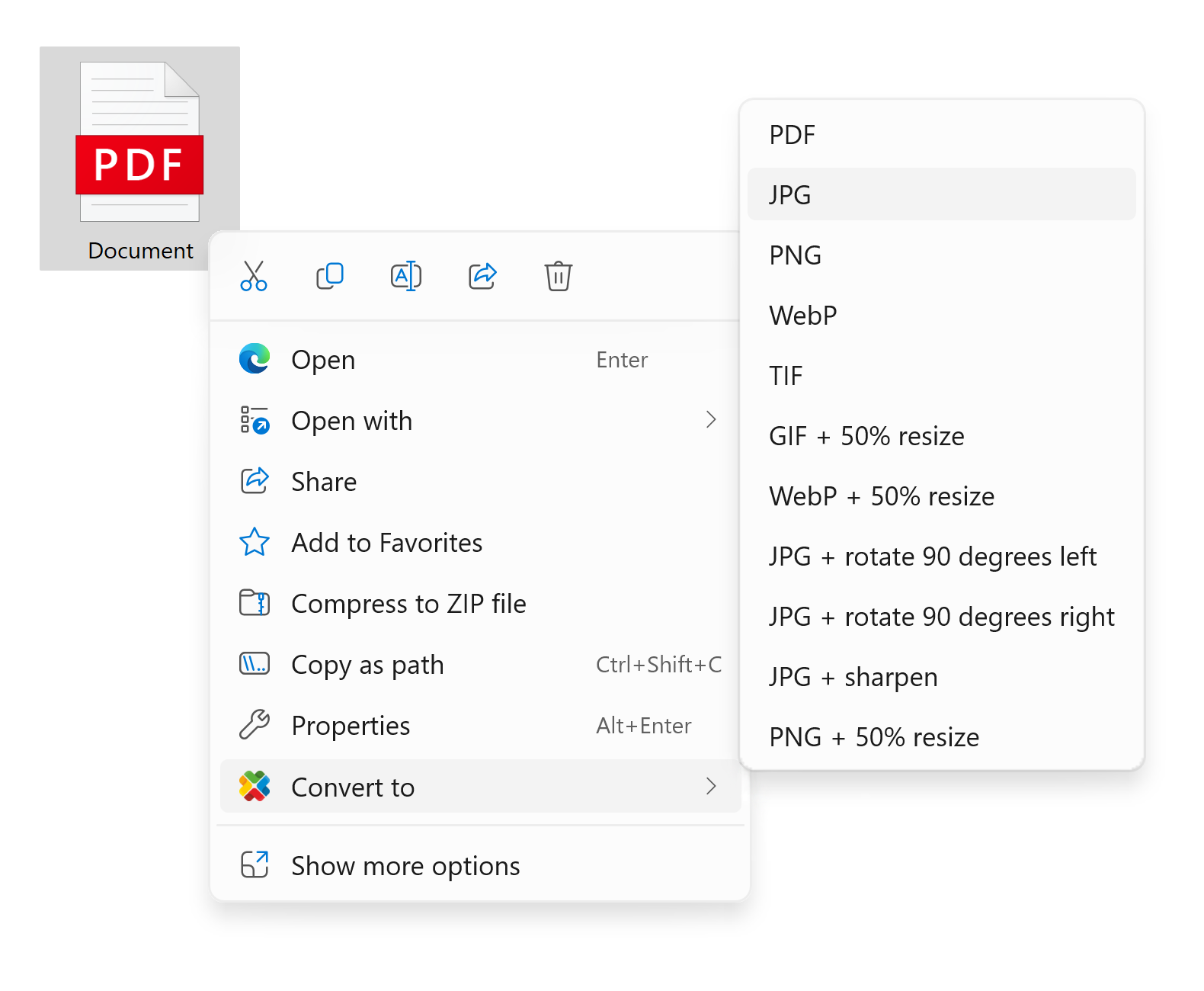
Select files in Windows Explorer, right-click, and choose a reaConverter option. Files are converted using your preset settings.
Enable Context Menu
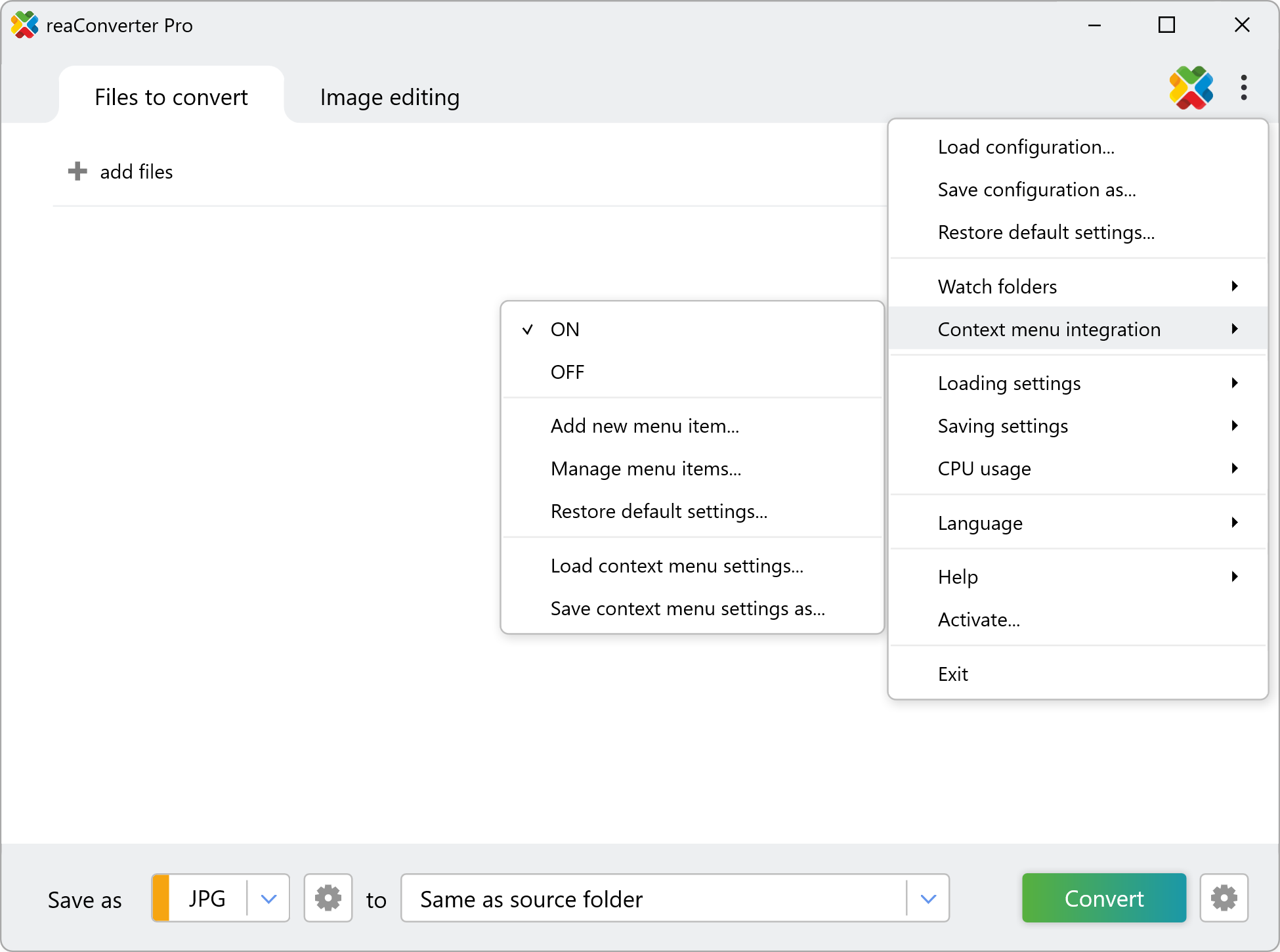
Open reaConverter → Menu → Context menu integration → turn ON.
Add Custom Options
Go to Menu → Context menu integration → Add new menu item.
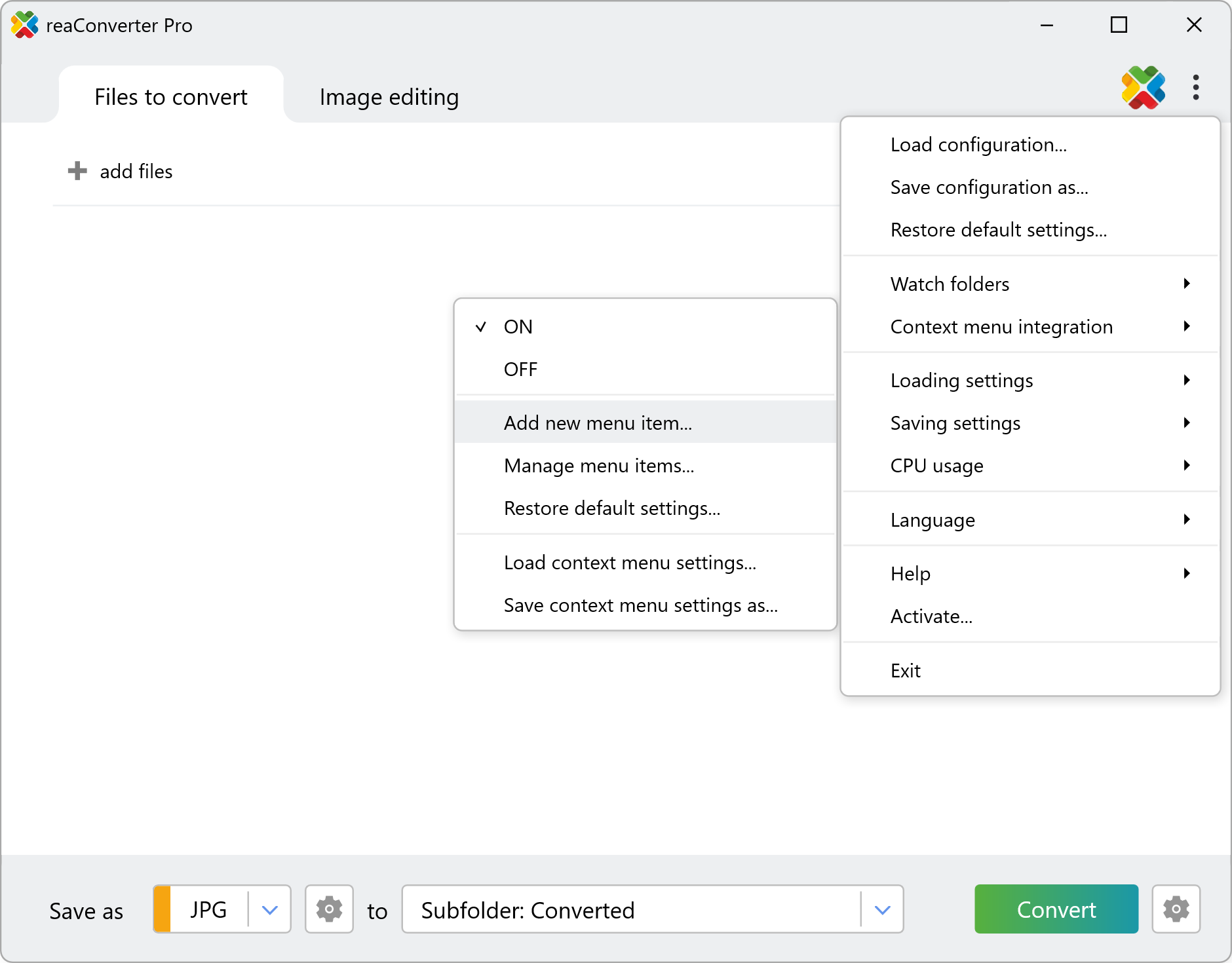
In the dialog, set the menu item name and choose output format. Optionally load an .act file to add image editing actions. Click Create New Item when done.
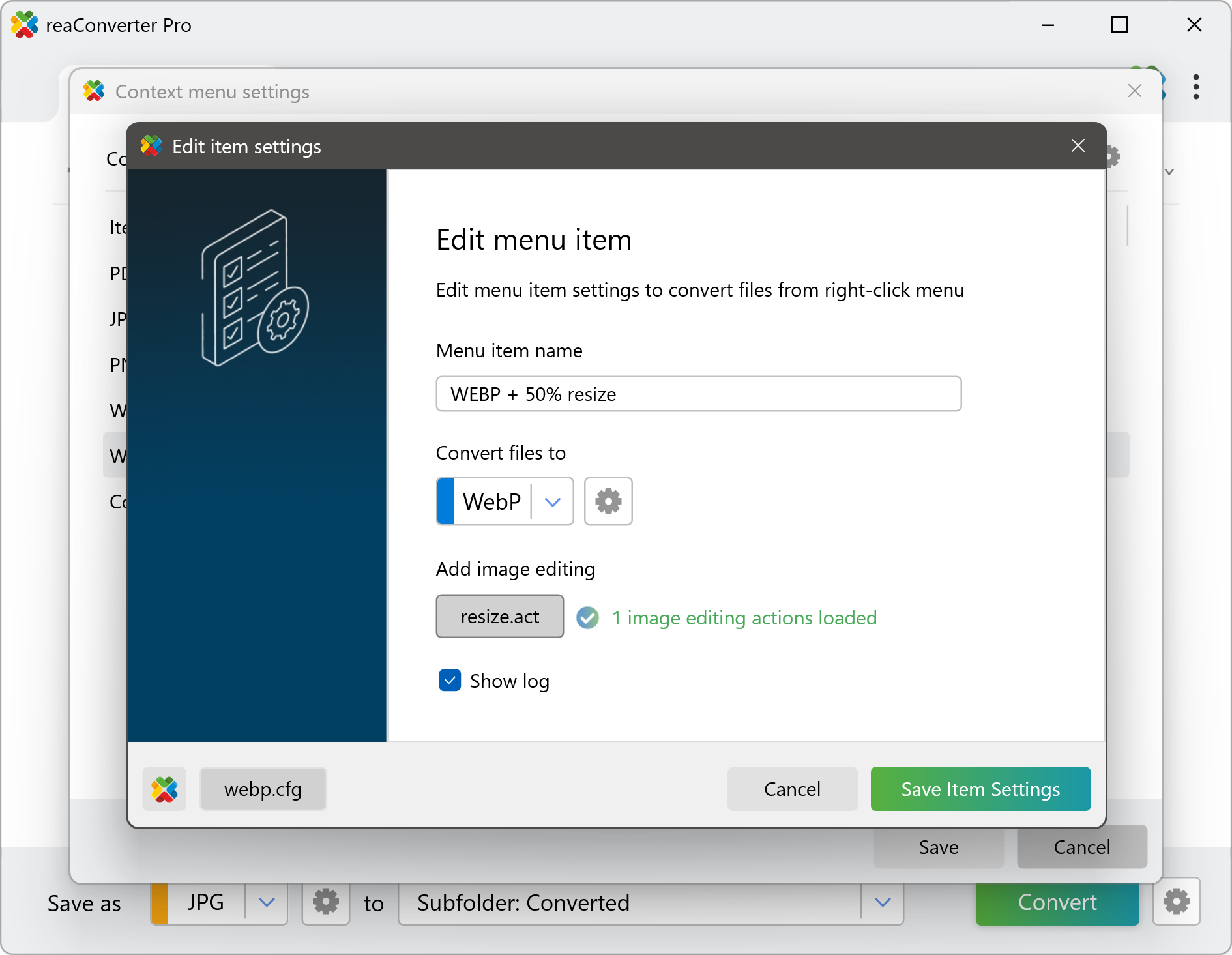
💡Click the reaConverter icon to import current app settings, or use Load config file for saved configuration presets.
Questions? Contact our technical support.
Video Tutorial
The fastest way to process your files — just right-click and convert instantly with reaConverter’s context menu integration.