How to Use reaConverter
Three steps: load files, choose output format, click Convert.
Step 1: Load Files
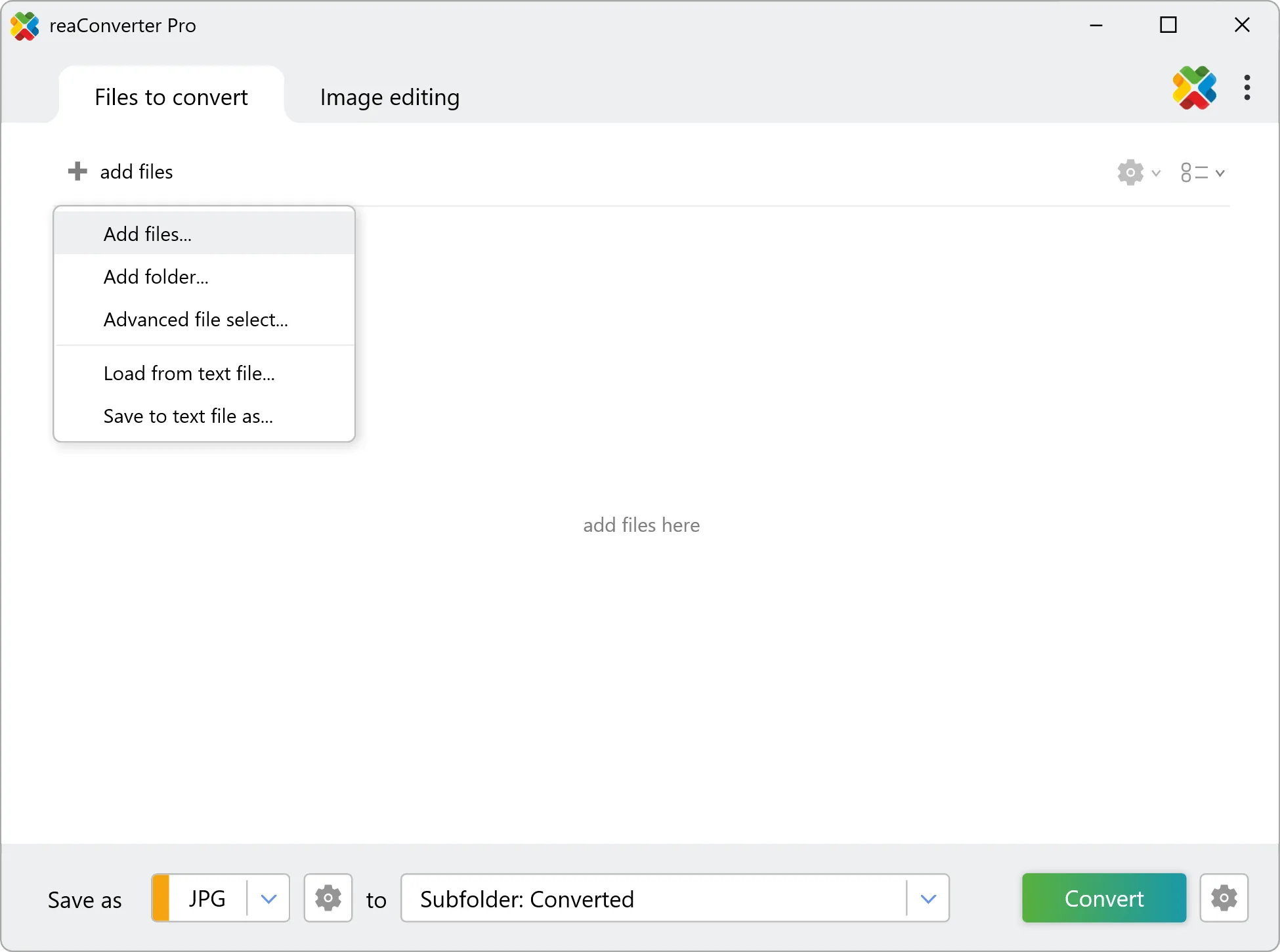
Click + add files and select the files you want to convert. reaConverter supports 700+ file formats, including rare and archaic ones.
Step 2: Edit Images (Optional)
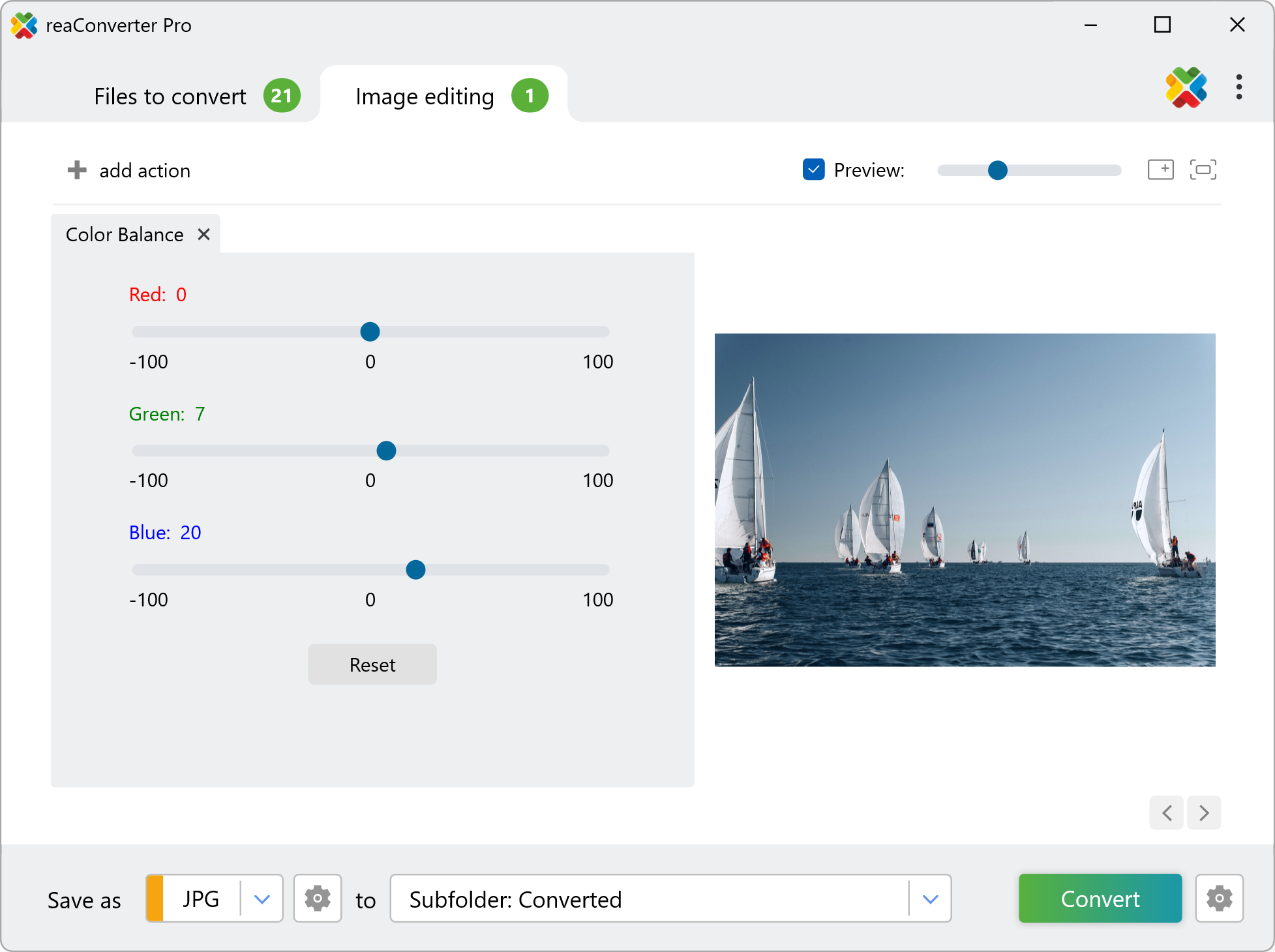
Switch to the Image editing tab to add actions like resize, crop, rotate, watermark, color adjustments, and more. See all editing options.
Step 3: Convert
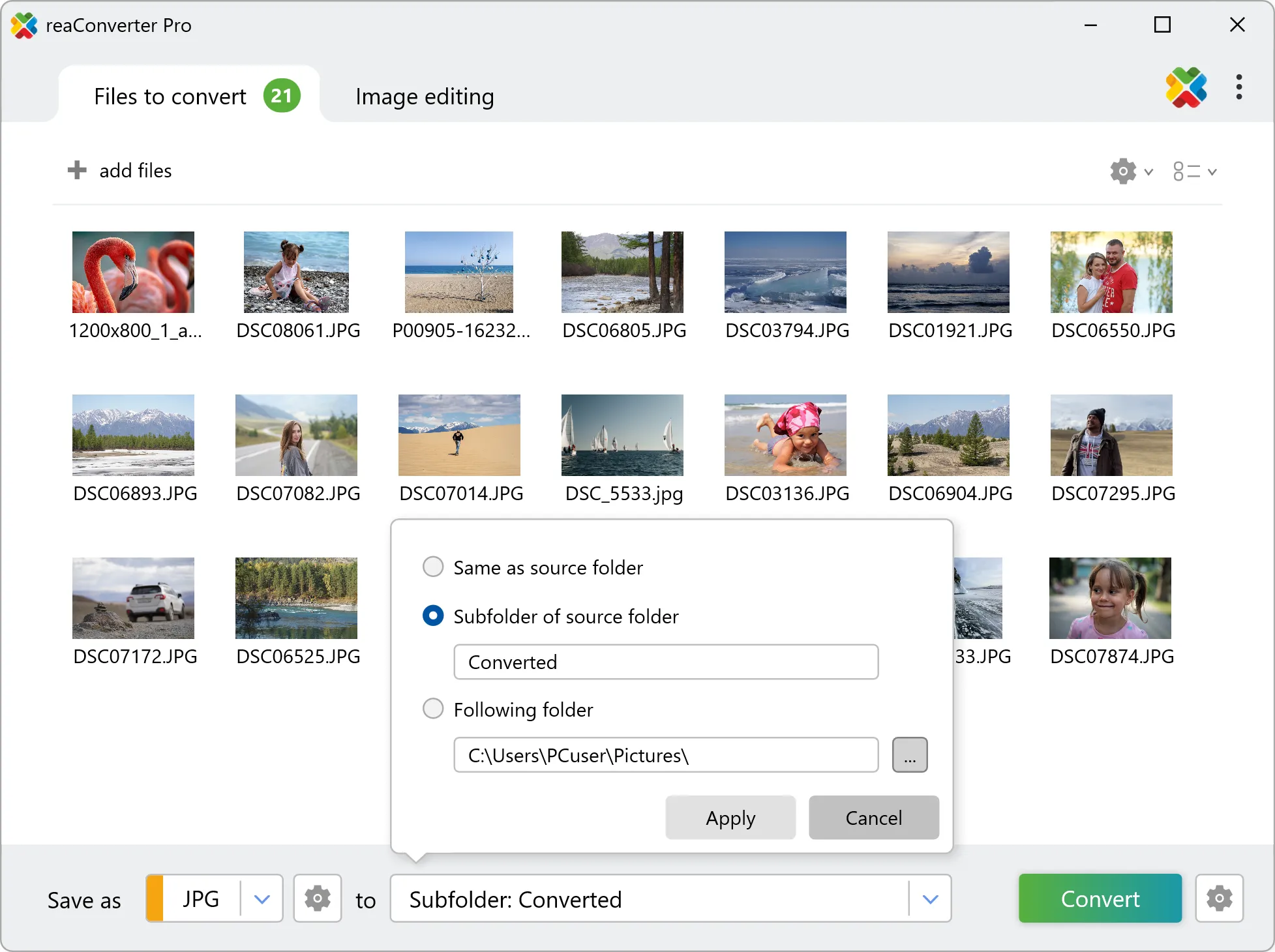
Choose the output format and destination folder, then click Convert. All editing actions are applied to every file automatically.
Video Tutorial
Watch a quick walkthrough of the conversion process.
💡For automation, see Context Menu, Watch Folders, or Command-Line Interface.
Questions? Contact our technical support.
Discover more
reaConverter offers advanced batch processing, editing, and conversion for virtually every image format — with unmatched precision and speed.
