Configuration Files

How to Create Configuration Files
Configuration File.cfg
Stores conversion settings: output format, destination folder, file naming rules, and post-conversion actions.
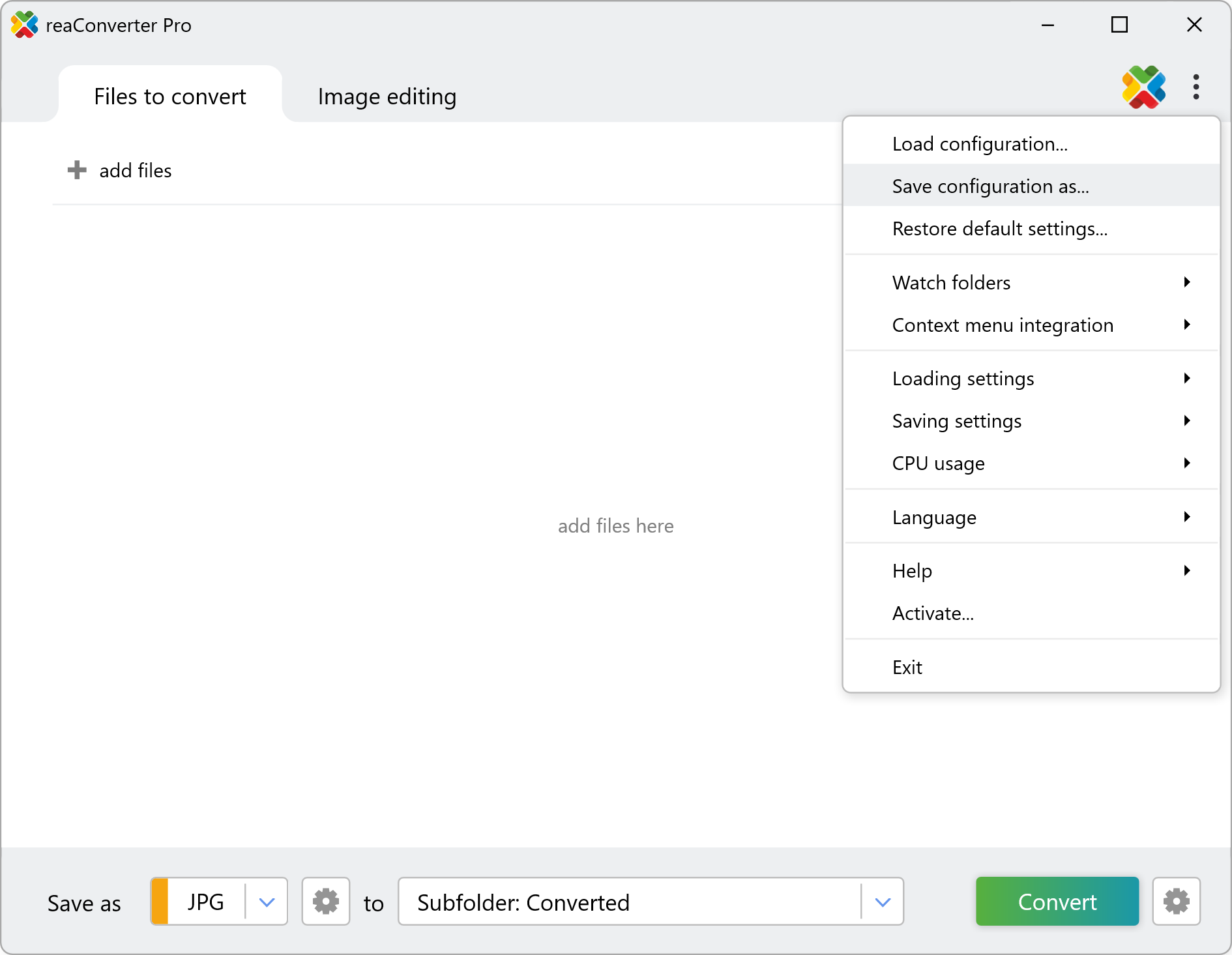
Menu → Save configuration as
Action File.act
Stores image editing operations: resize, crop, rotate, watermark, adjust colors, and more.
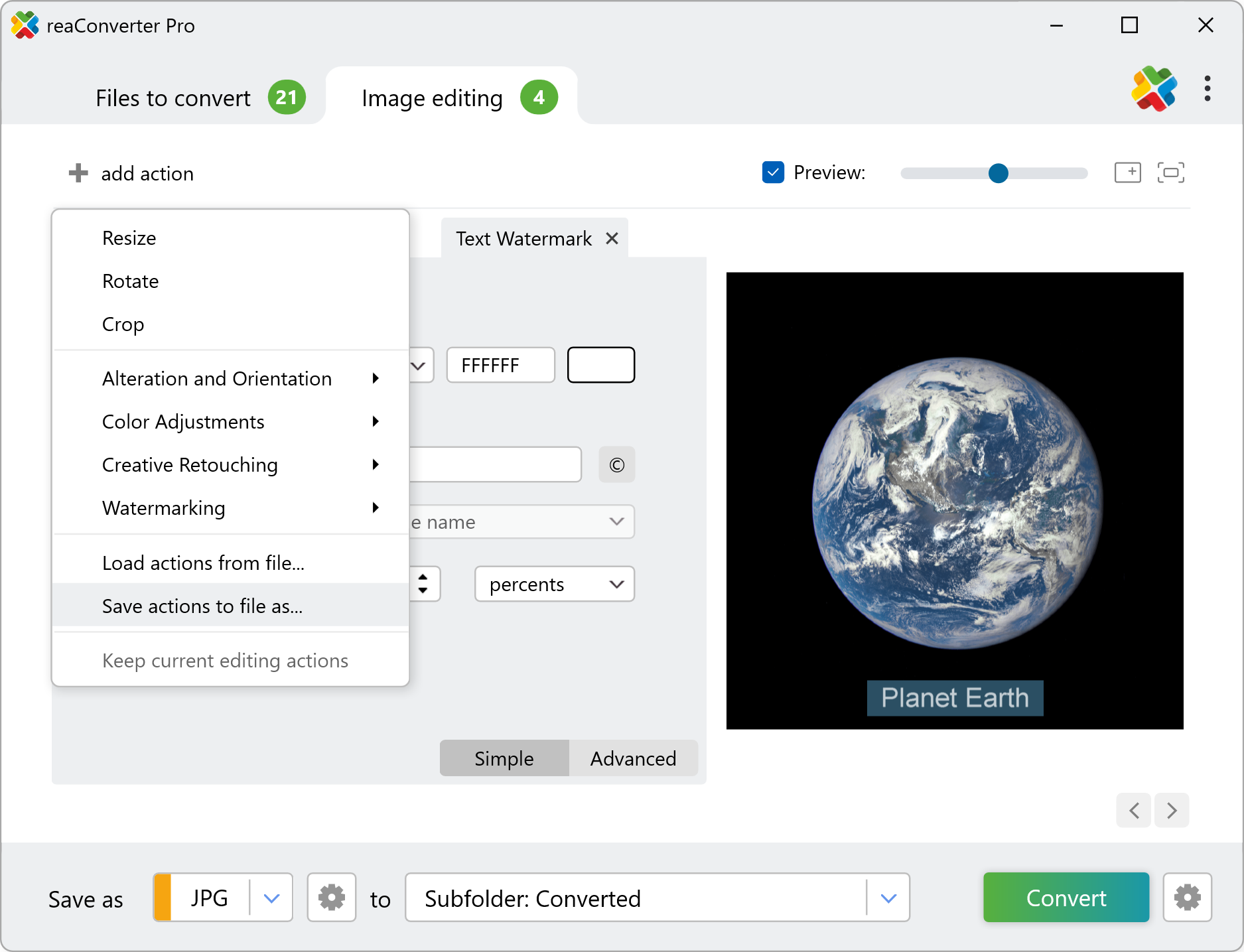
Image editing tab → Save actions to file as
Configuration File .cfg
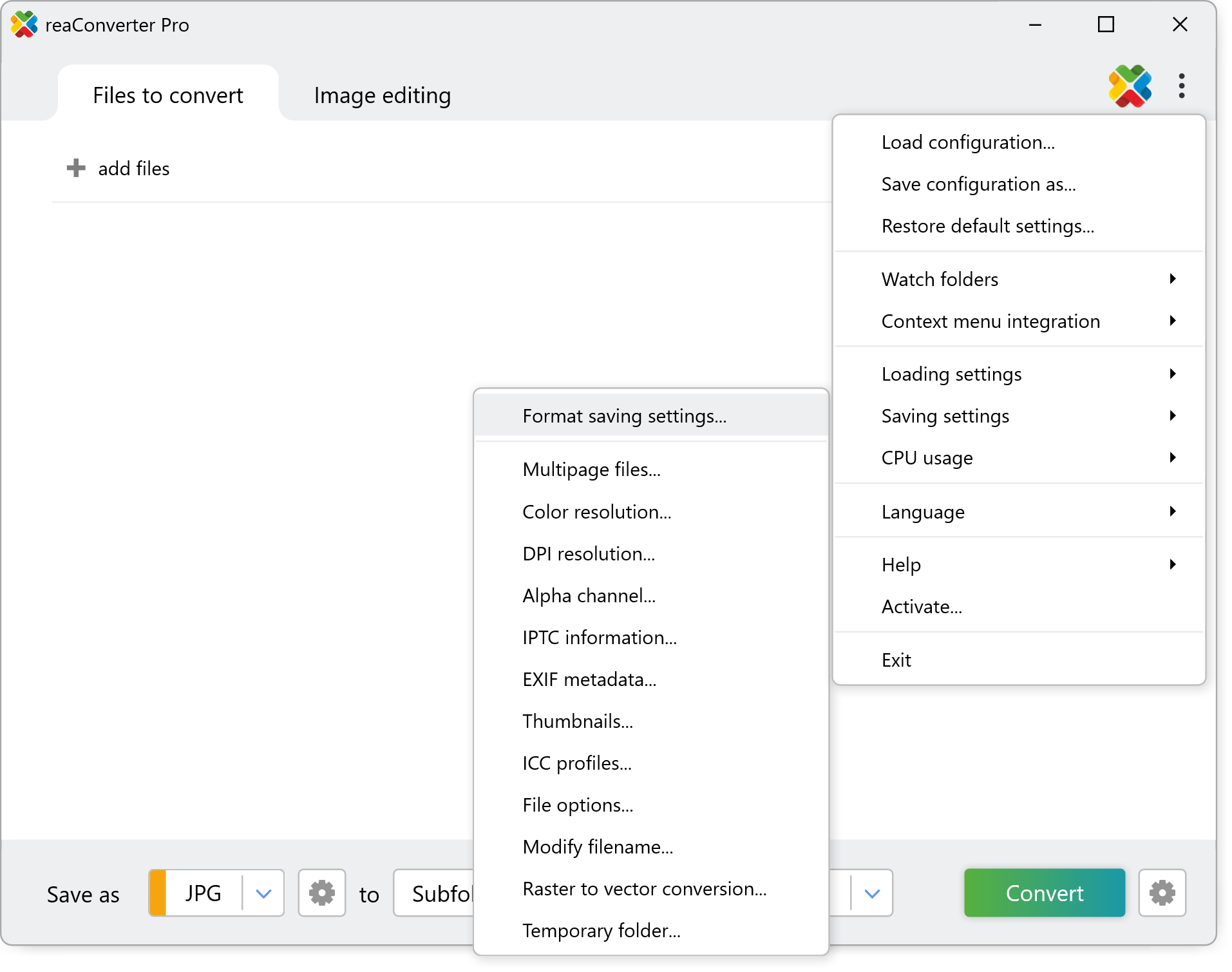
1. Set Up Conversion Settings
Select the output format and destination folder in the lower part of the screen. Optionally, configure additional settings under Menu → Saving settings.
2. Save Configuration
Go to Menu → Save configuration as and save your .cfg file.
Action File .act
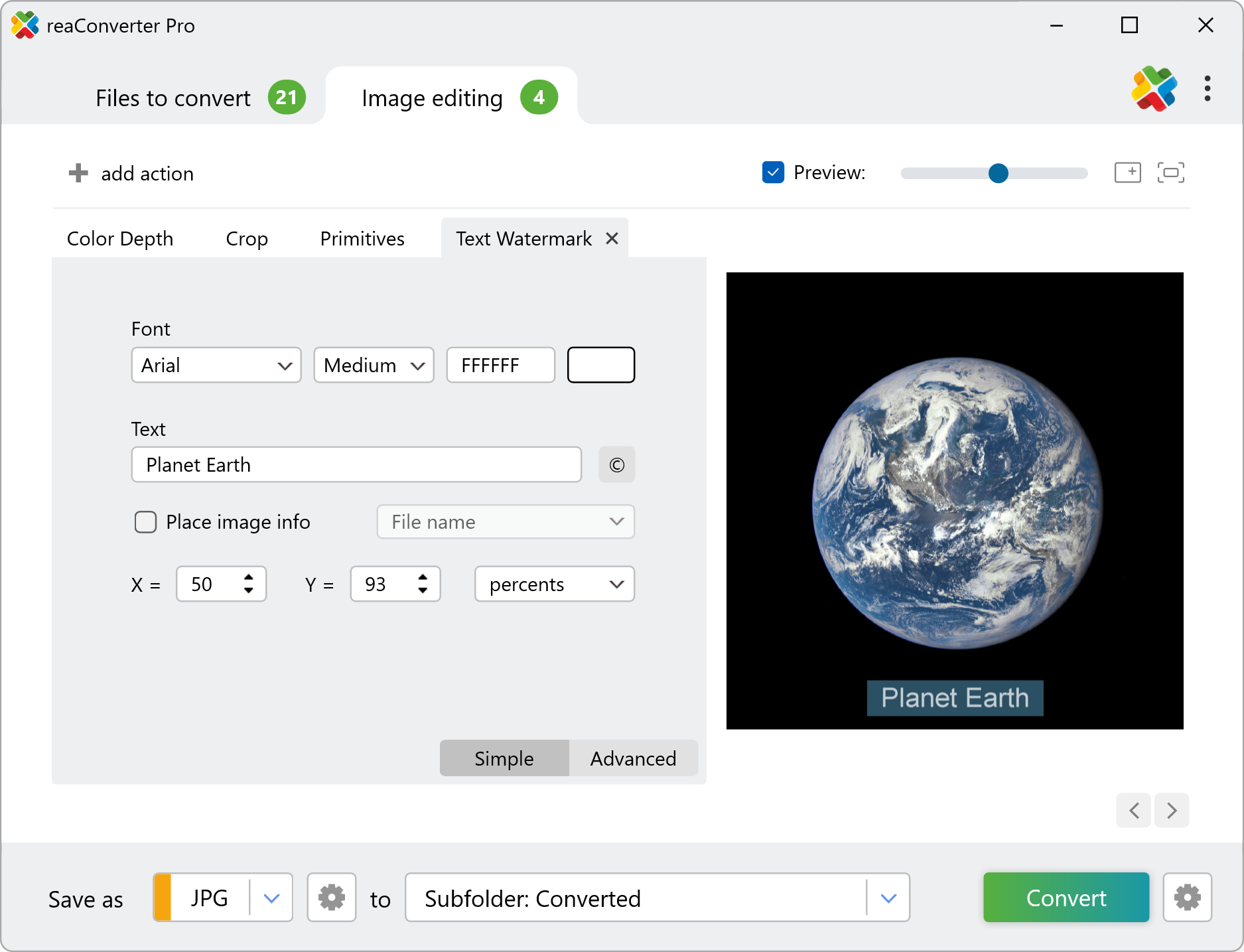
1. Add Editing Actions
Go to the Image editing tab and add one or more actions using the Add action button.
2. Save Actions
Click Save actions to file as to save your .act file.
Video Tutorial
Learn how to create and reuse configuration files in reaConverter.
Using Configuration Files with Command-Line
reaConverter Pro includes cons_rcp.exe — a command-line tool for automated batch processing. Use your .cfg and .act files directly in scripts and automated workflows.
Basic syntax:
cons_rcp.exe cfg_file.cfg act_file.act -f source_file1 source_file2 source_file3
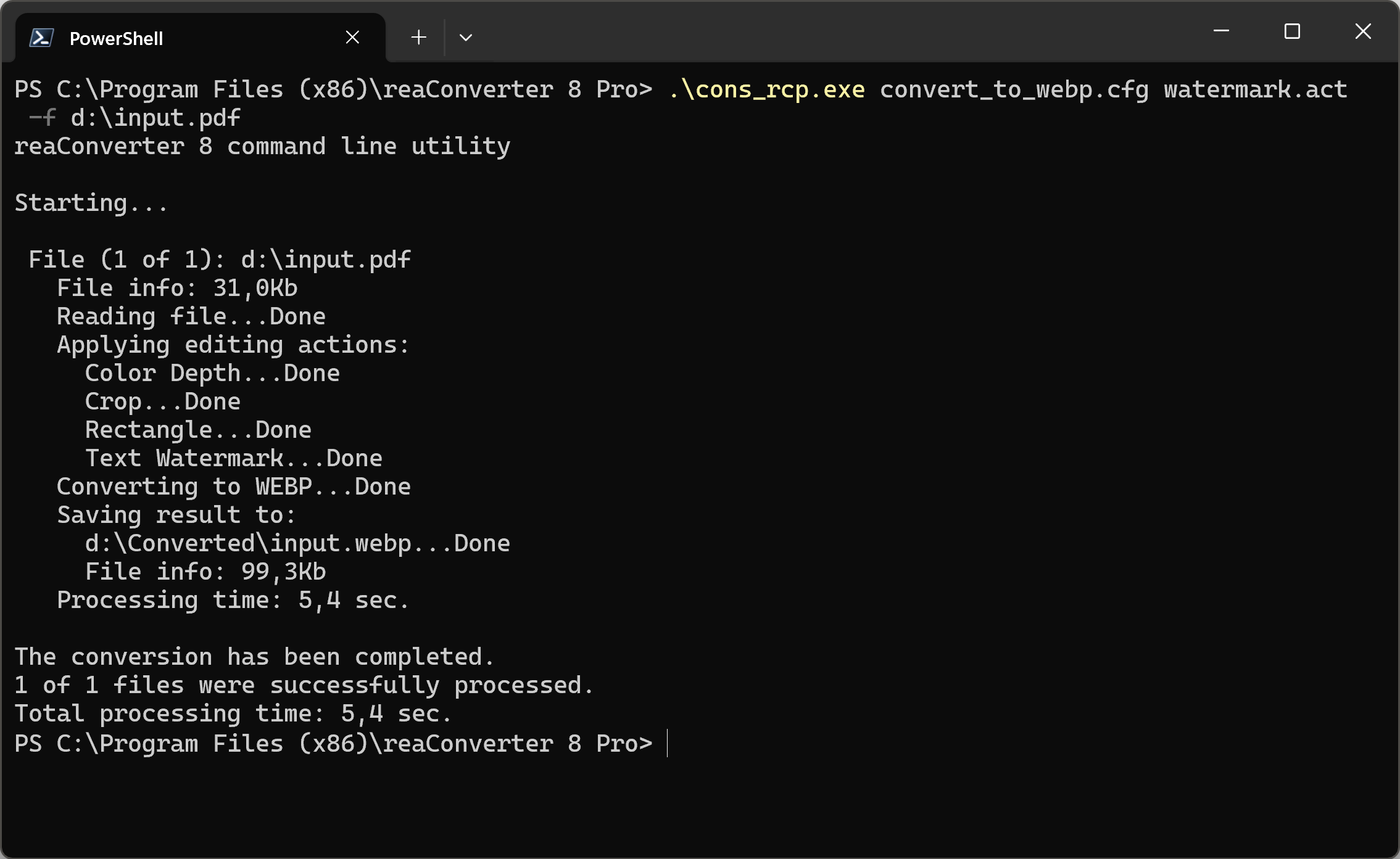
Learn more about command-line options in the Command-line documentation.
Discover more
