

How to Convert Multiple TIFF Images to CAL?
1. Download and Install reaConverter
First, grab reaConverter from the download button below. Installation is fast, and the software runs offline — no account or signup needed. Apply image edits like resize, crop, or color adjustment while converting.

2. Load your TIFF files
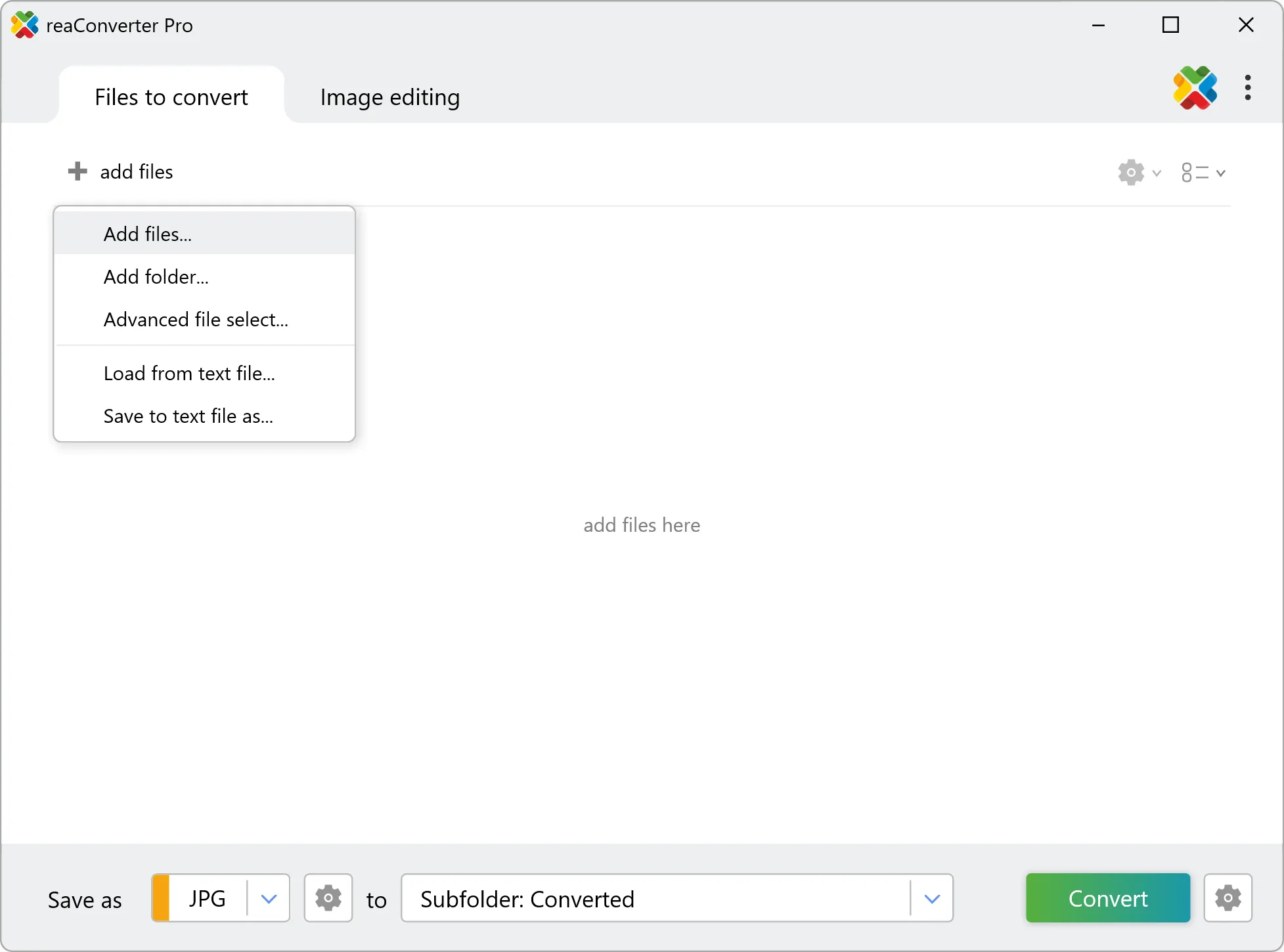
Launch reaConverter and drop in your TIFF files. The software queues everything for batch processing with consistent settings.
Add files by dragging them in, browsing folders, or using the right-click menu from Windows Explorer.
3. Select CAL as output format
Pick CAL as output format and choose the destination folder where you want to save new .cal files.

4. Start TIFF to CAL conversion
Then simply press the Convert button and your conversion will begin in no time!
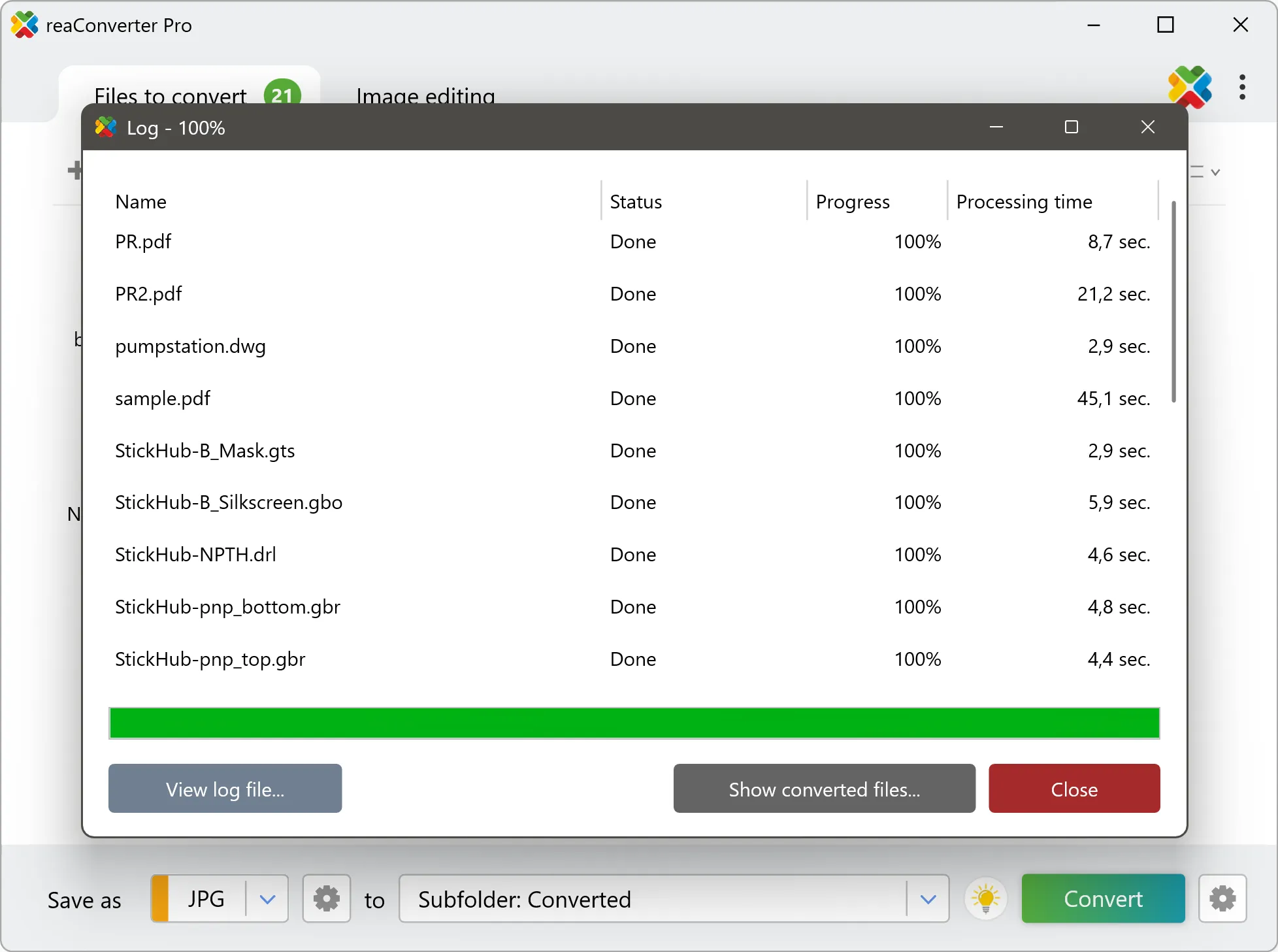
Once the conversion is complete, you can find your CAL files in the destination folder you selected.