

How to Convert Multiple TAB Files to DXF?
1. Download and Install reaConverter
Download reaConverter and install it in seconds. The setup is straightforward — no complex configuration, no extra software required.

2. Load your TAB files
Add your TAB files to reaConverter. Whether it's a handful or an entire archive, the batch engine processes them efficiently.
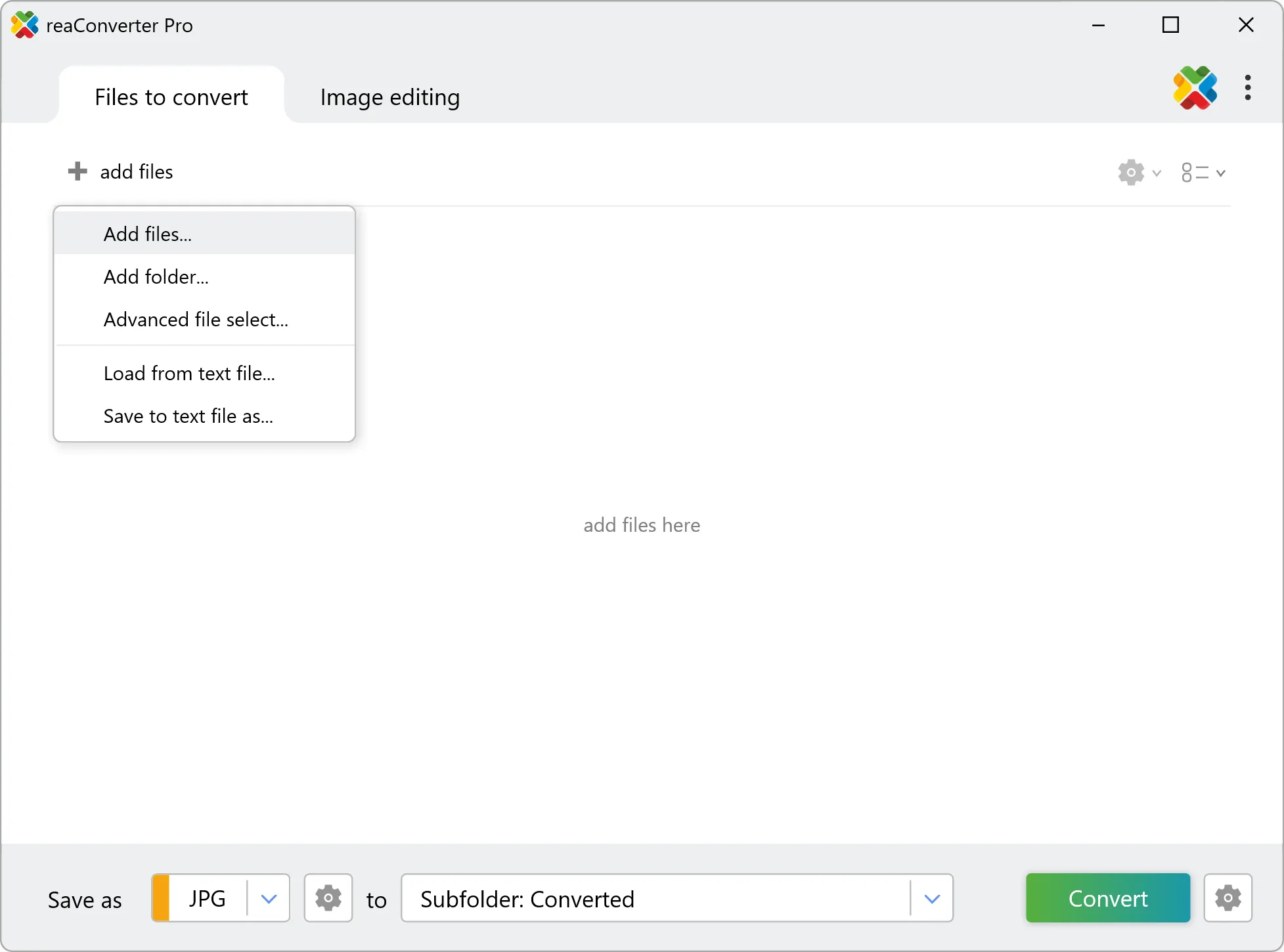
You can drag-and-drop files, browse to a folder, or add entire directory trees including subfolders.
3. Select DXF as output format
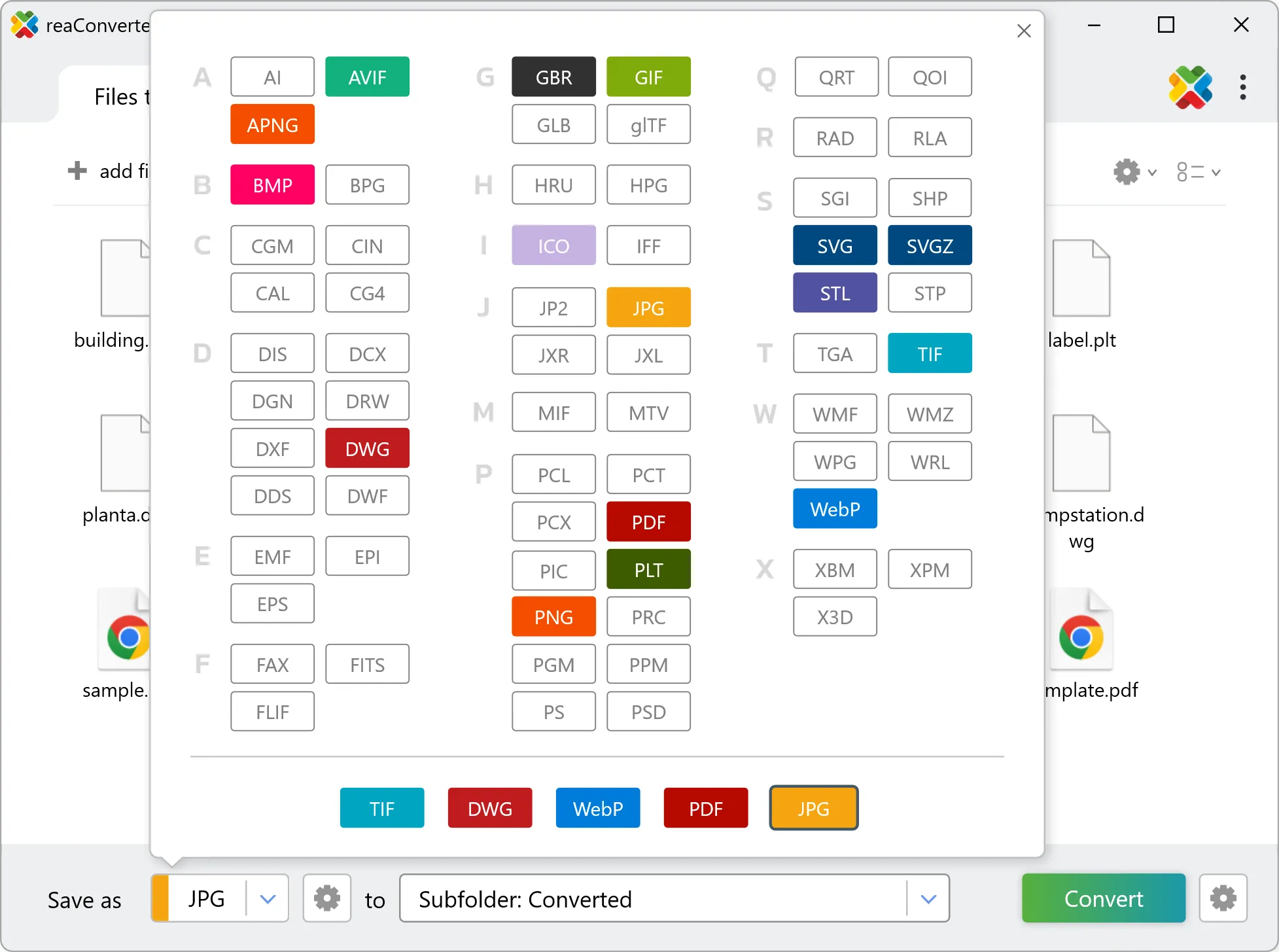
Set DXF as output format and select where to save your converted files. Customize quality settings if needed.
4. Start TAB to DXF conversion
Click the Convert button to start. reaConverter will process all your files with the settings you selected.
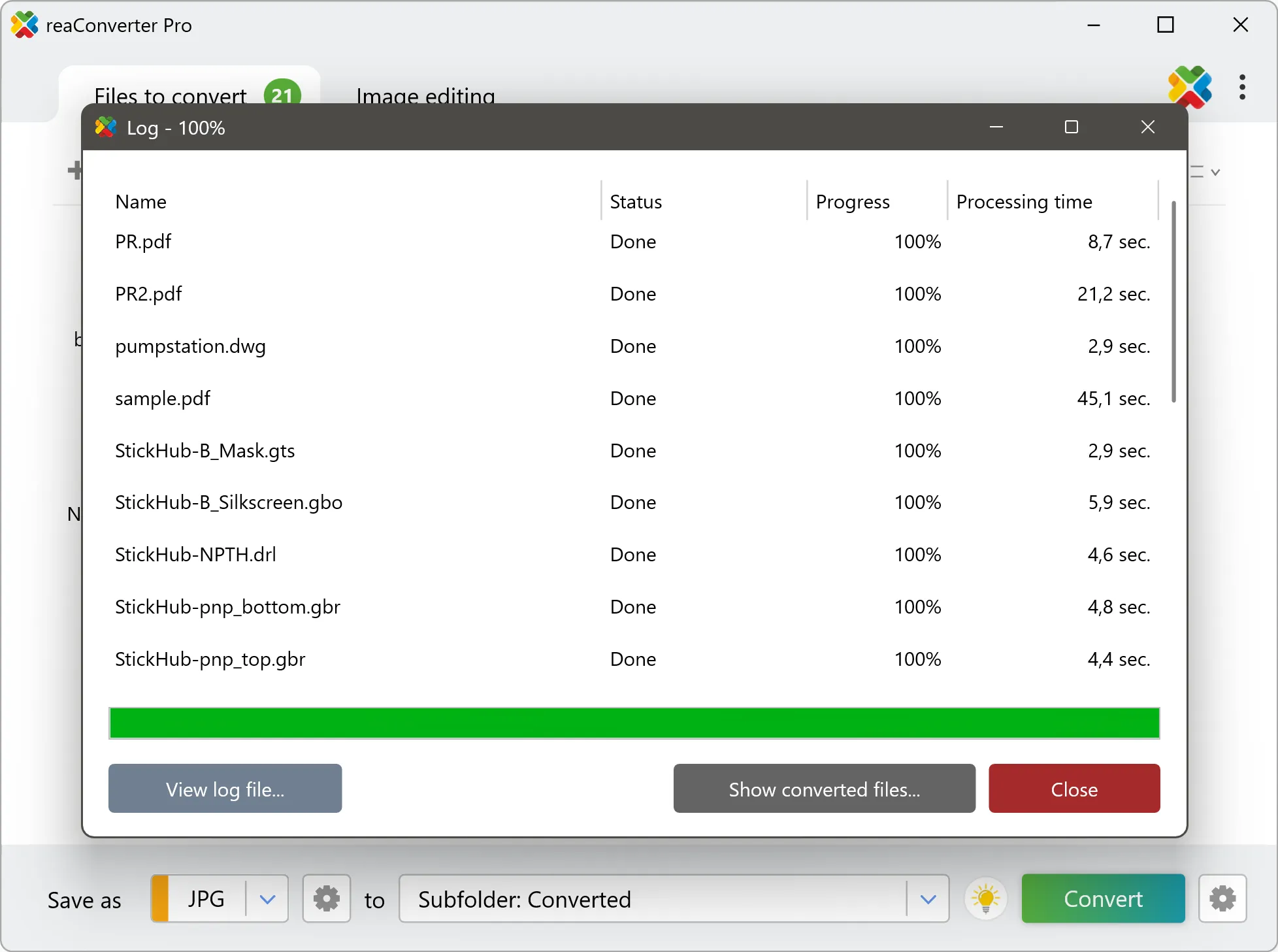
When finished, your new .dxf files will be waiting in the destination folder.