

How to Convert Multiple SVG Files to BMP?
1. Download and Install reaConverter Lite
reaConverter Lite is quick to download, easy to install, and ready to launch in seconds. This lightweight, standalone software is highly efficient at handling a wide range of batch image conversions. Plus, it lets you apply essential image editing options — such as resizing, rotating, or adjusting quality — during the conversion process.

2. Load your SVG files
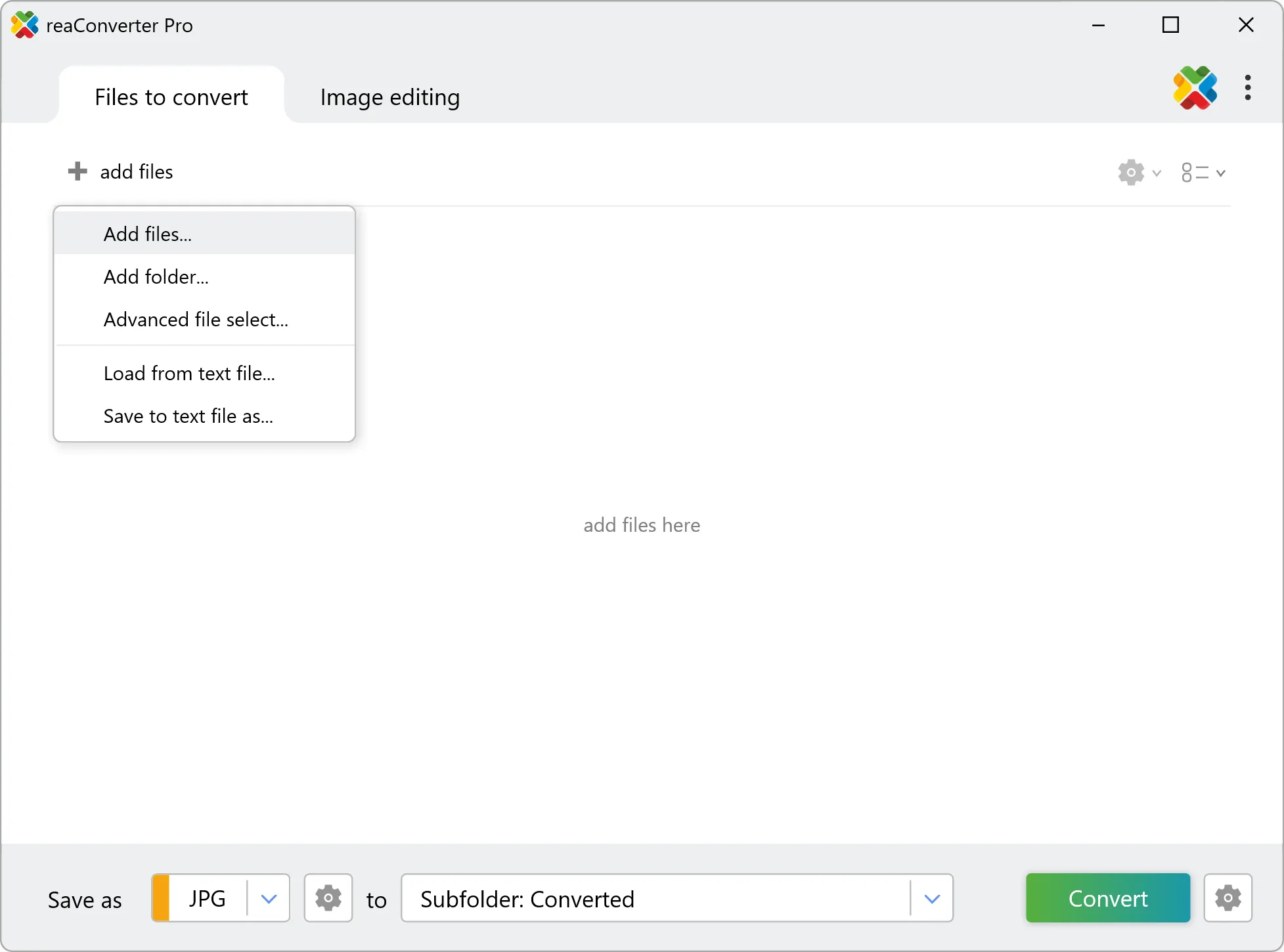
Open reaConverter and import your .svg files. No file limits, no slowdowns. Add as many as you need.
Drag files into the window, use the Add Files button, or select entire folders.
3. Select BMP as output format
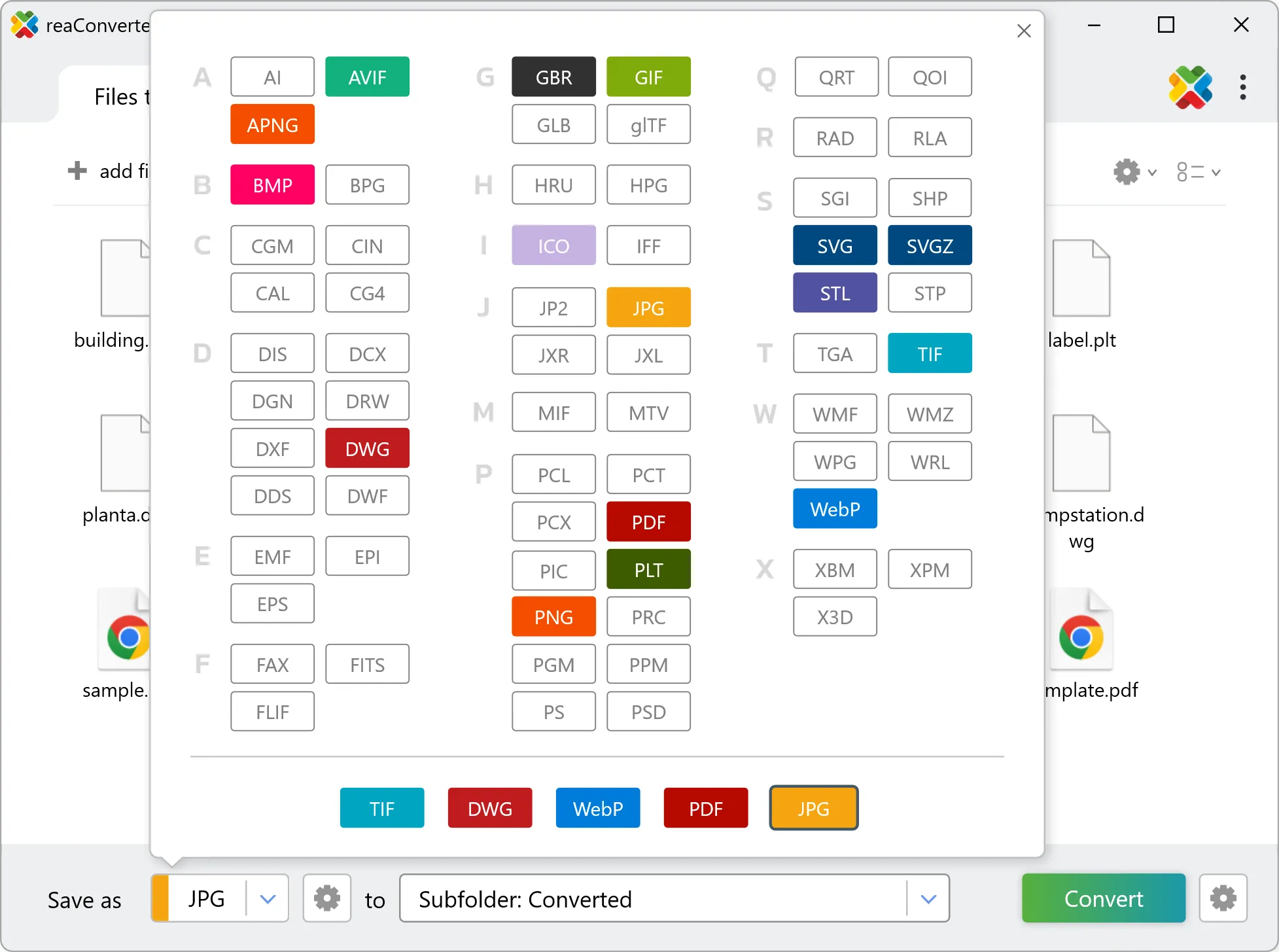
Select BMP from the output format list and set your destination folder. You can also adjust quality and compression settings.
4. Start SVG to BMP conversion
Hit Convert to process your files. The log window shows progress, timing, and status for every file.
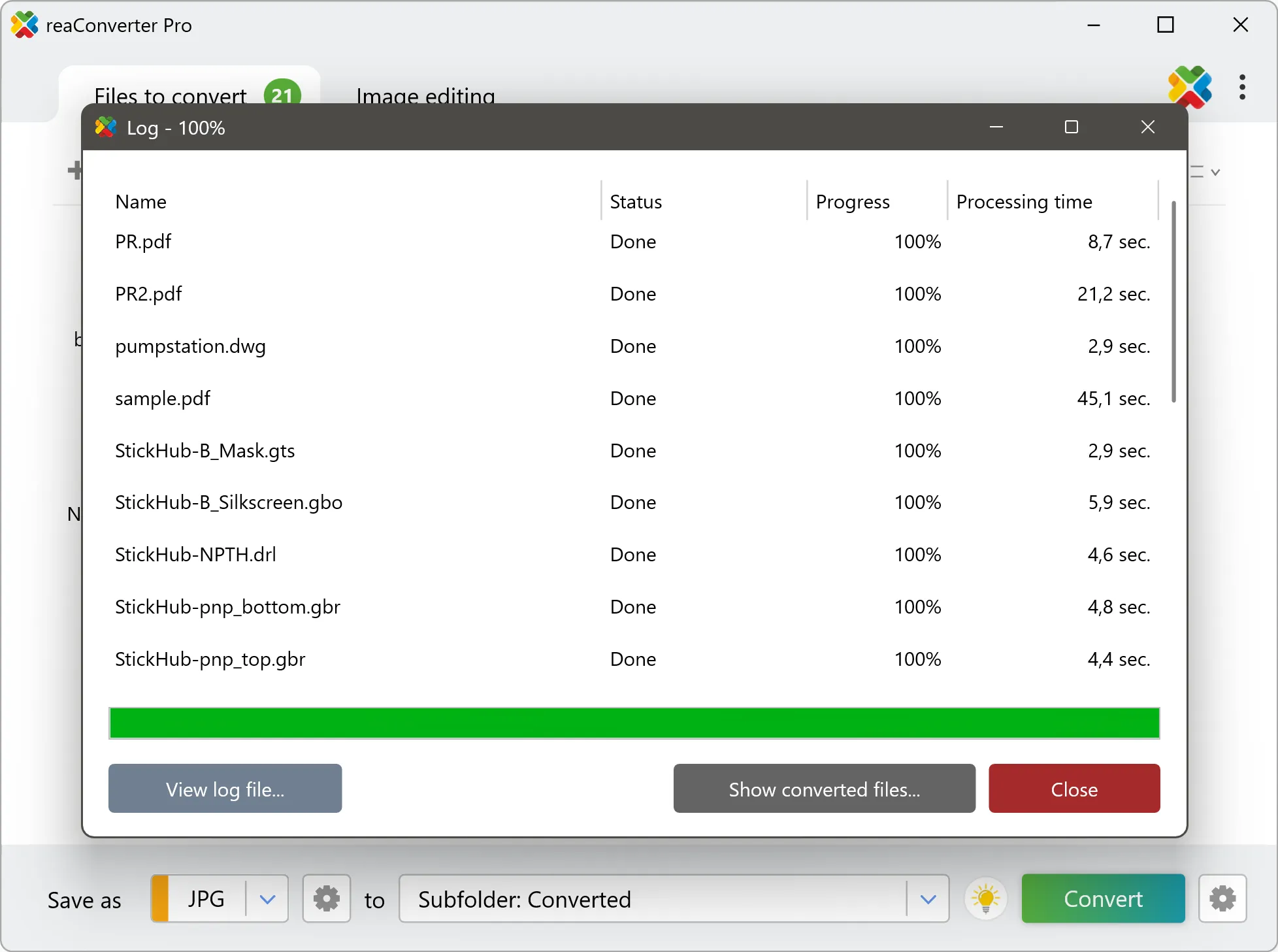
Conversion complete? Your BMP files are saved to the destination folder, ready to use.