

How to Convert Multiple KC2 Images to SVG?
1. Download and Install reaConverter
Download reaConverter and install it in seconds. The setup is straightforward — no complex configuration, no extra software required. reaConverter also includes editing tools: resize, crop, rotate, and more.

2. Load your KC2 files
Launch reaConverter and drop in your KC2 files. The software queues everything for batch processing with consistent settings.
Drop your KC2 files into the window or use File menu to browse and select folders.
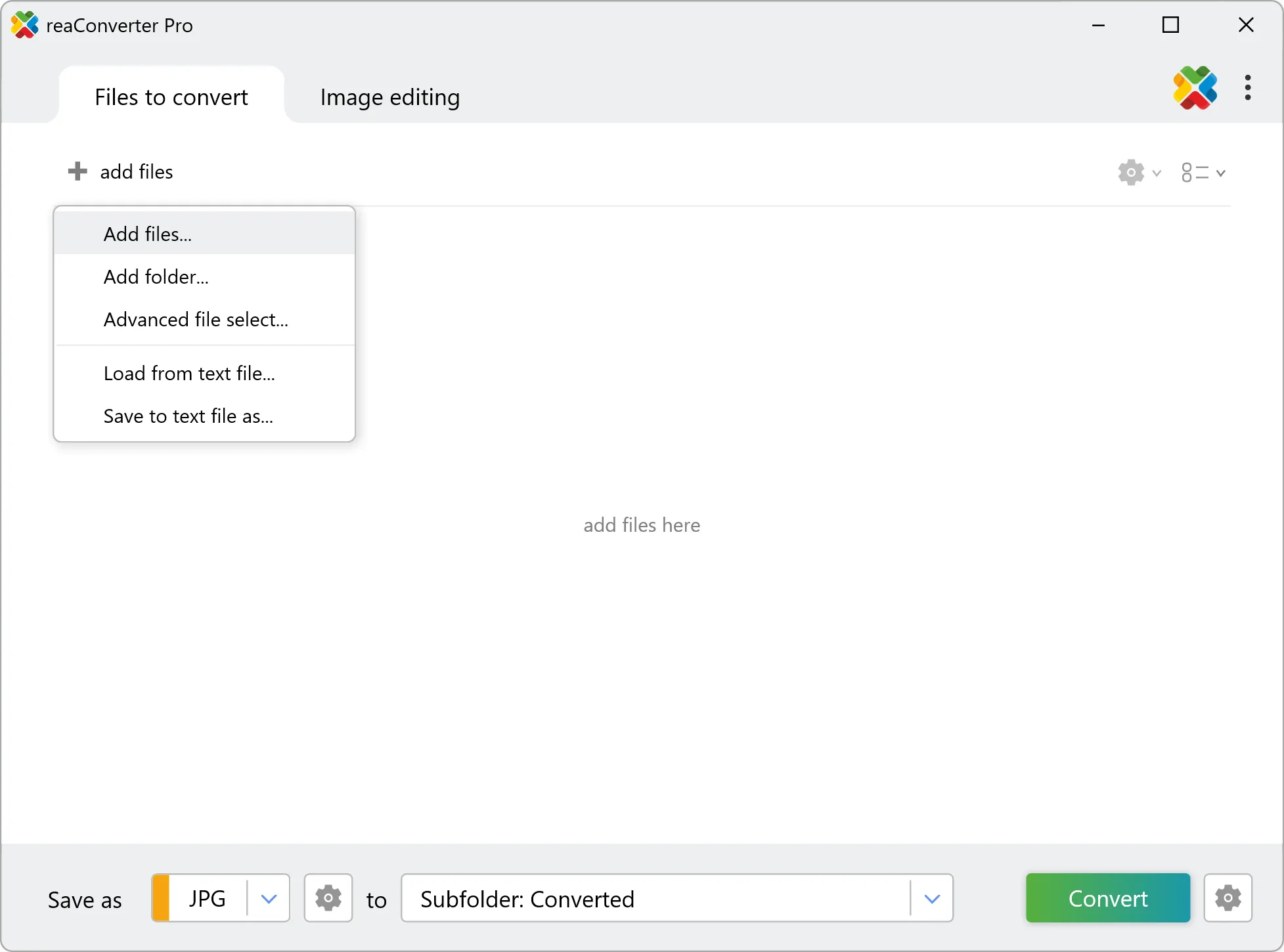
3. Select SVG as output format
Choose SVG as the target format. Pick a destination folder or let reaConverter save files alongside the originals.

4. Start KC2 to SVG conversion
Hit Convert and let reaConverter do the work. The progress window shows status for each file in real time.
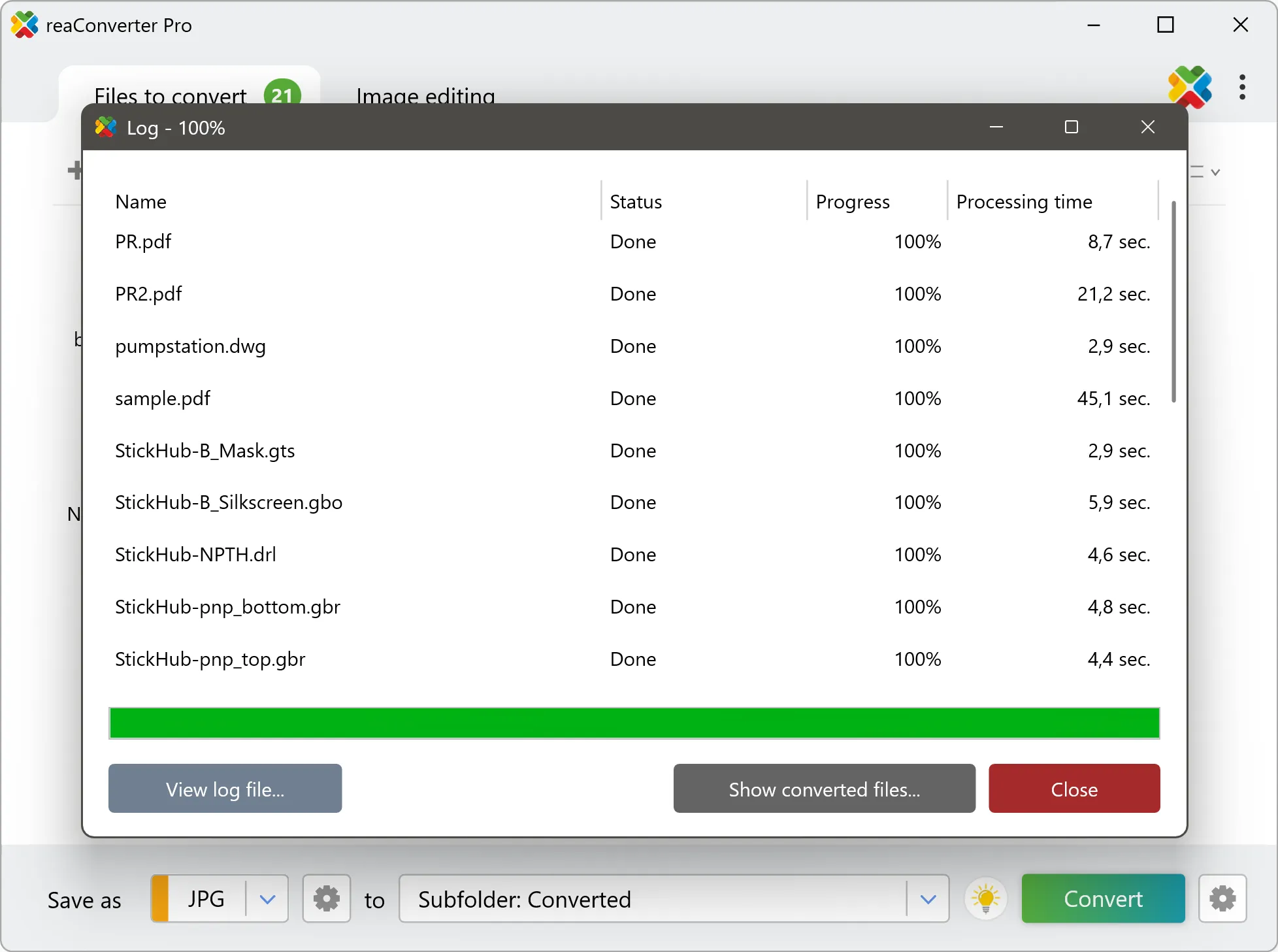
After conversion, find your SVG files in the output folder. Click 'Show converted files' to open it directly.