

How to Convert Multiple K25 Images to SVG?
1. Download and Install reaConverter
Download reaConverter and install it in seconds. The setup is straightforward — no complex configuration, no extra software required. Apply image edits like resize, crop, or color adjustment while converting.

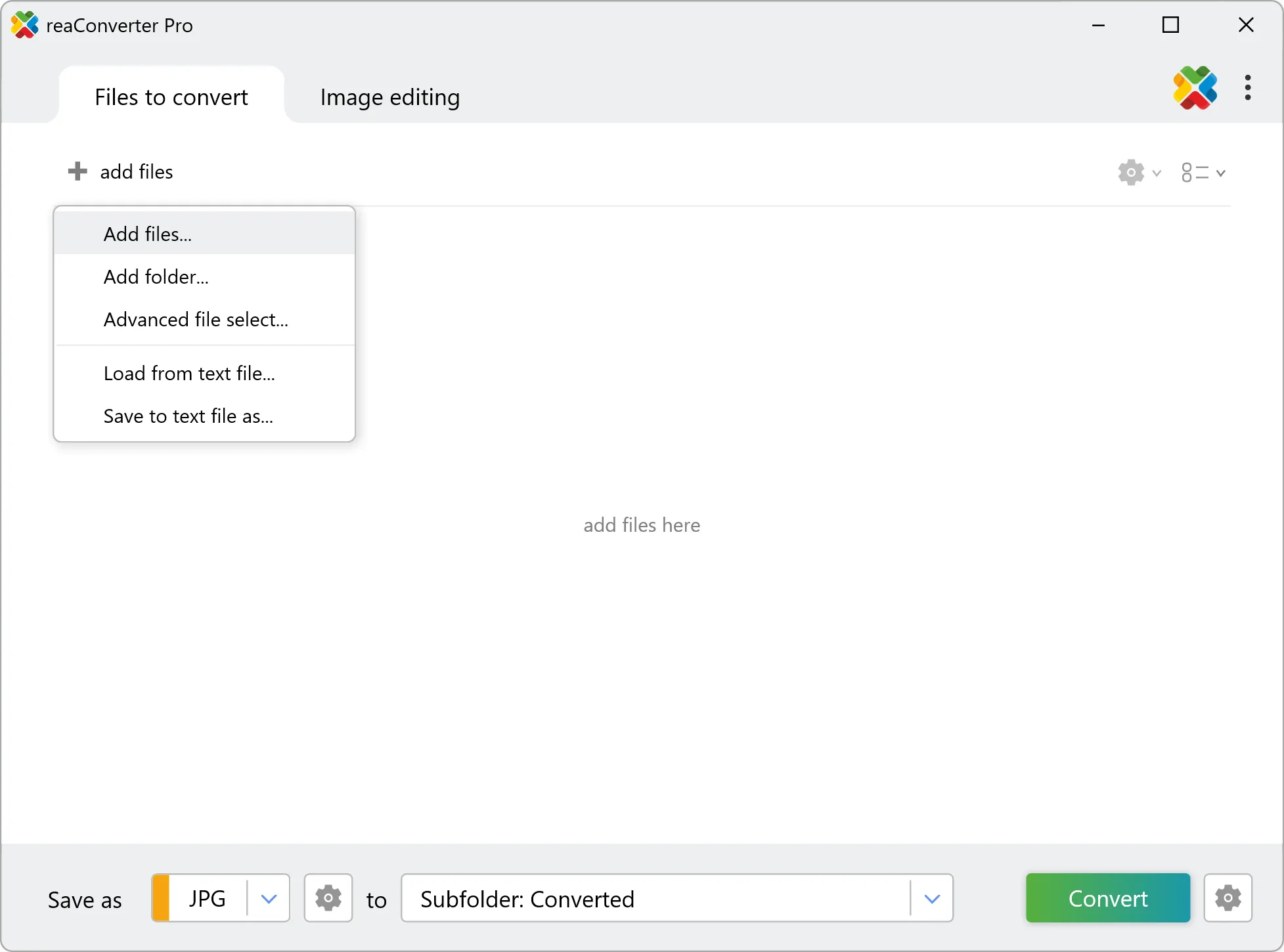
2. Load your K25 files
Add K25 camera files to reaConverter. Import folders of RAW photos and process them all with consistent settings.
Use drag-and-drop, folder browser, or right-click conversion from Explorer.
3. Select SVG as output format
Select SVG from 700+ supported output formats. Choose your destination folder and adjust settings to match your needs.

4. Start K25 to SVG conversion
Click Convert to start the batch. reaConverter processes files quickly and shows you the status of each one.
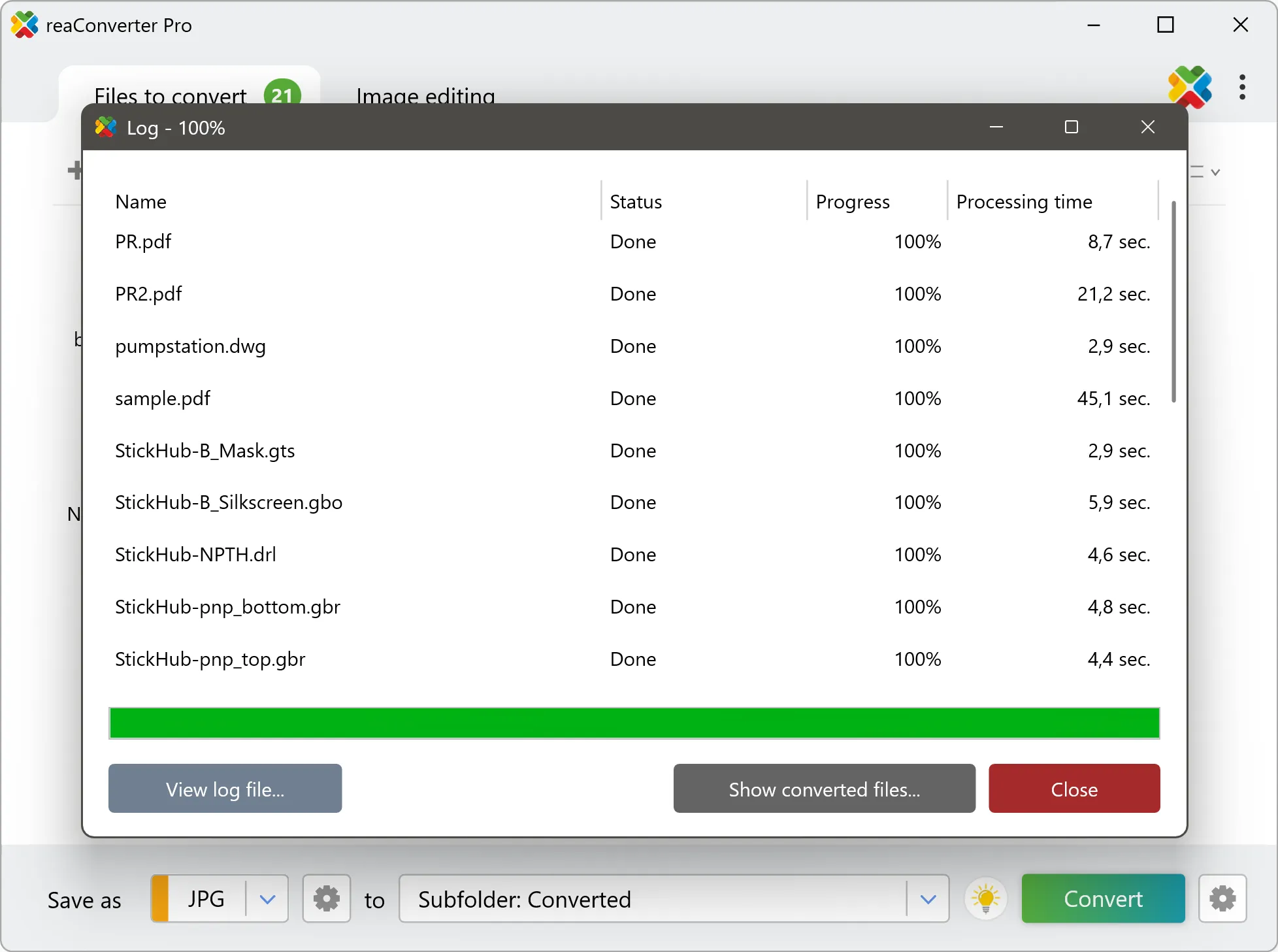
Once done, reaConverter shows a summary. Click 'Show converted files' to jump straight to your SVG output.