

How to Convert Multiple K25 Images to QRT?
1. Download and Install reaConverter
reaConverter installs quickly on any Windows PC. No dependencies, no bloatware — just a clean setup that's ready to use immediately. Built-in editing tools let you resize, crop, or watermark as you convert.

2. Load your K25 files
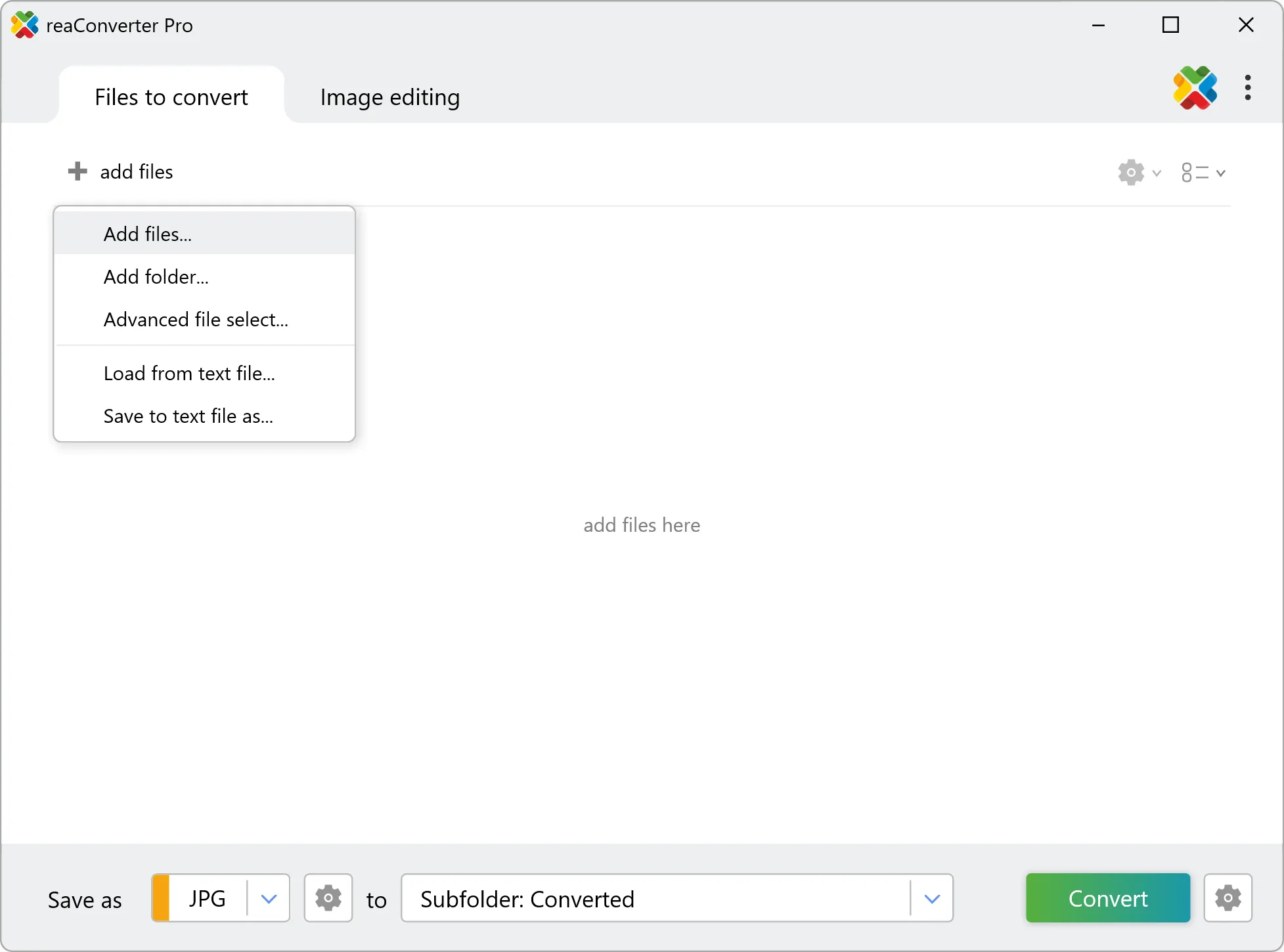
Add your K25 files to reaConverter. Whether it's a handful or an entire archive, the batch engine processes them efficiently.
Drag files into the window, use the Add Files button, or select entire folders.
3. Select QRT as output format
Set QRT as output format and select where to save your converted files. Customize quality settings if needed.

4. Start K25 to QRT conversion
Hit Convert to process your files. The log window shows progress, timing, and status for every file.
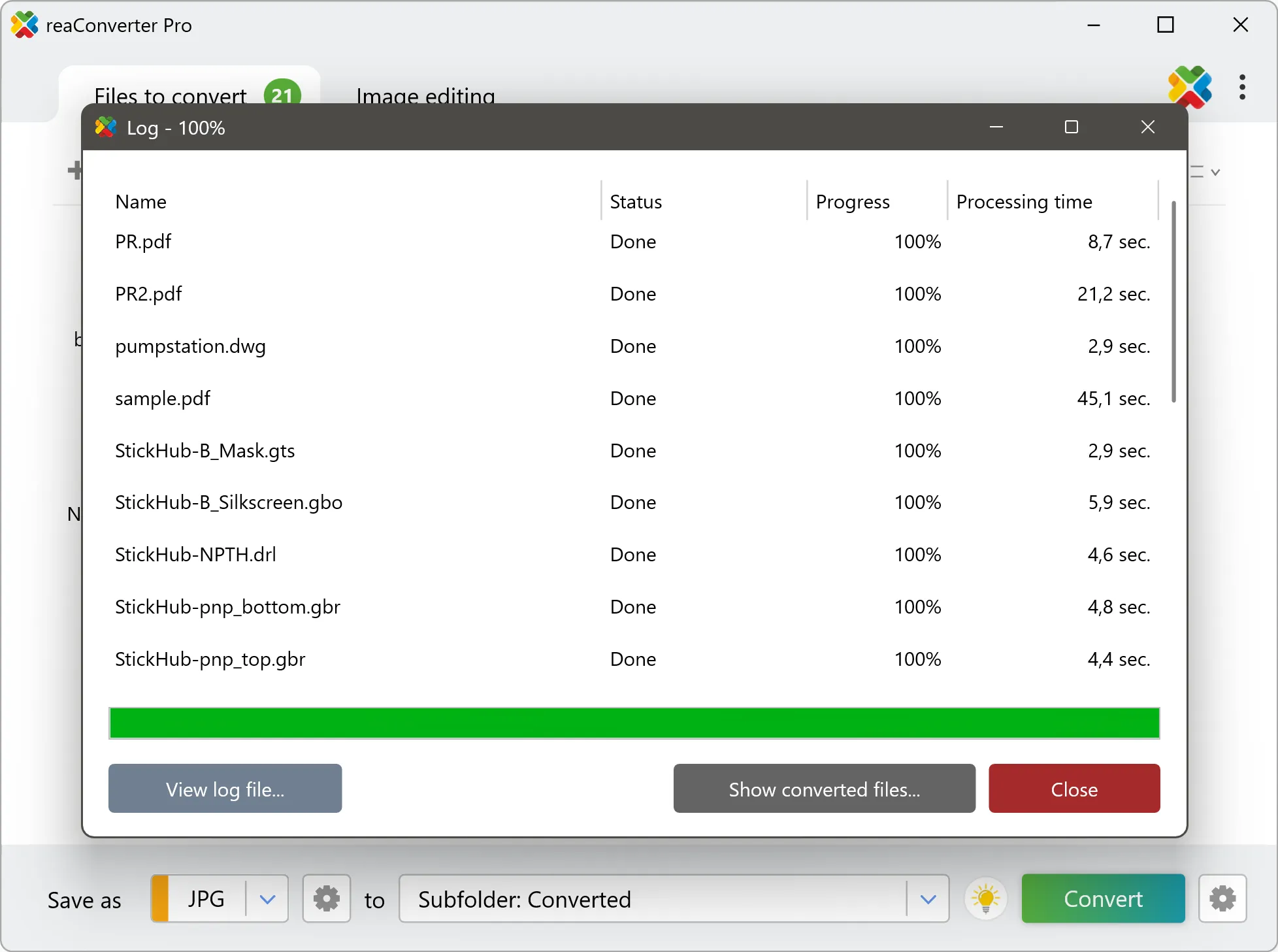
Conversion complete? Your QRT files are saved to the destination folder, ready to use.