

How to Convert Multiple DC2 Images to CGM?
1. Download and Install reaConverter
reaConverter installs quickly on any Windows PC. No dependencies, no bloatware — just a clean setup that's ready to use immediately. Built-in editing tools let you resize, crop, or watermark as you convert.

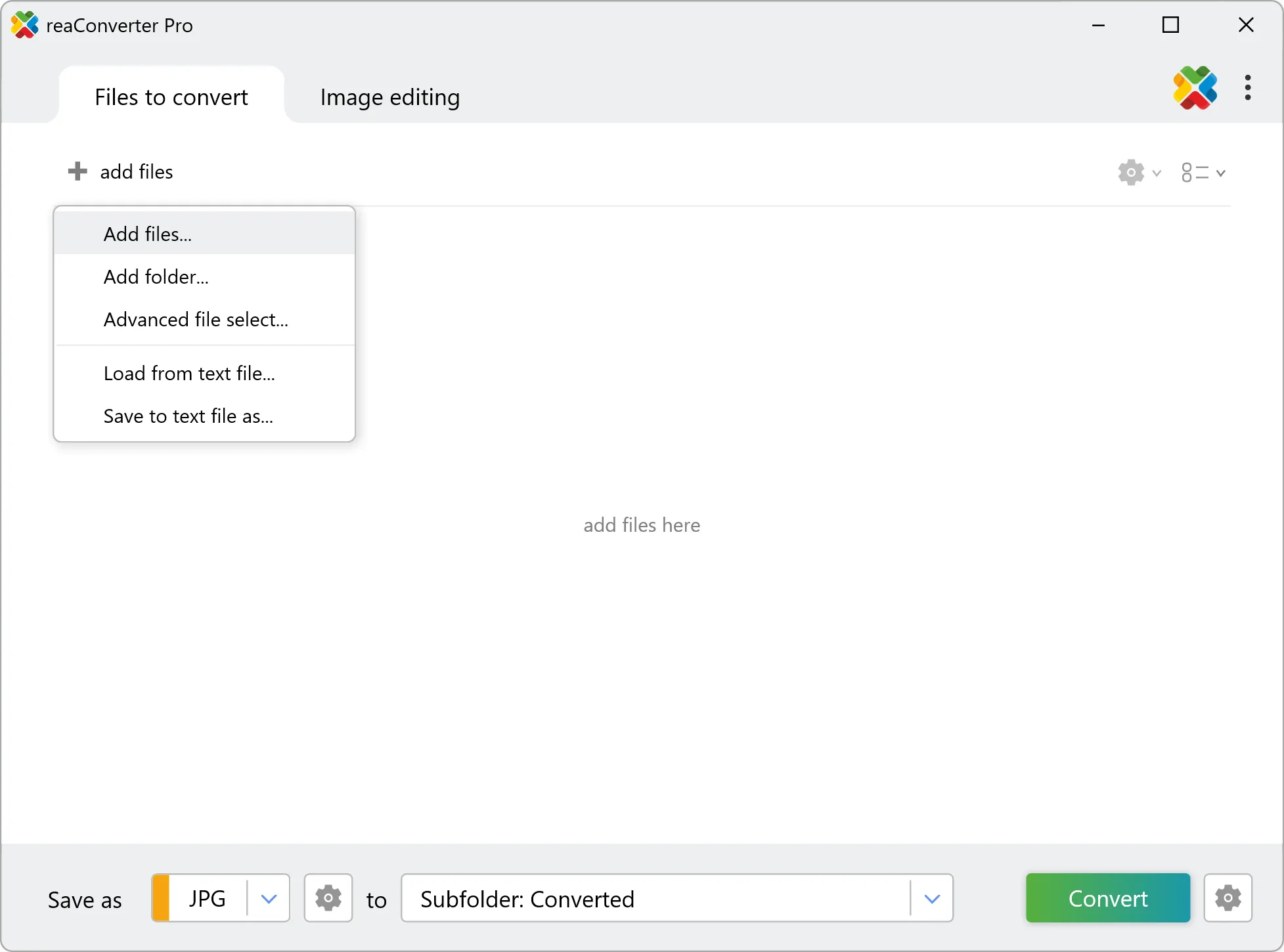
2. Load your DC2 files
Add DC2 camera files to reaConverter. Import folders of RAW photos and process them all with consistent settings.
Use drag-and-drop, folder browser, or right-click conversion from Explorer.
3. Select CGM as output format
Select CGM from the format list. Fine-tune color space, compression, and quality before converting your RAW photos.

4. Start DC2 to CGM conversion
Click Convert to start the batch. reaConverter processes files quickly and shows you the status of each one.
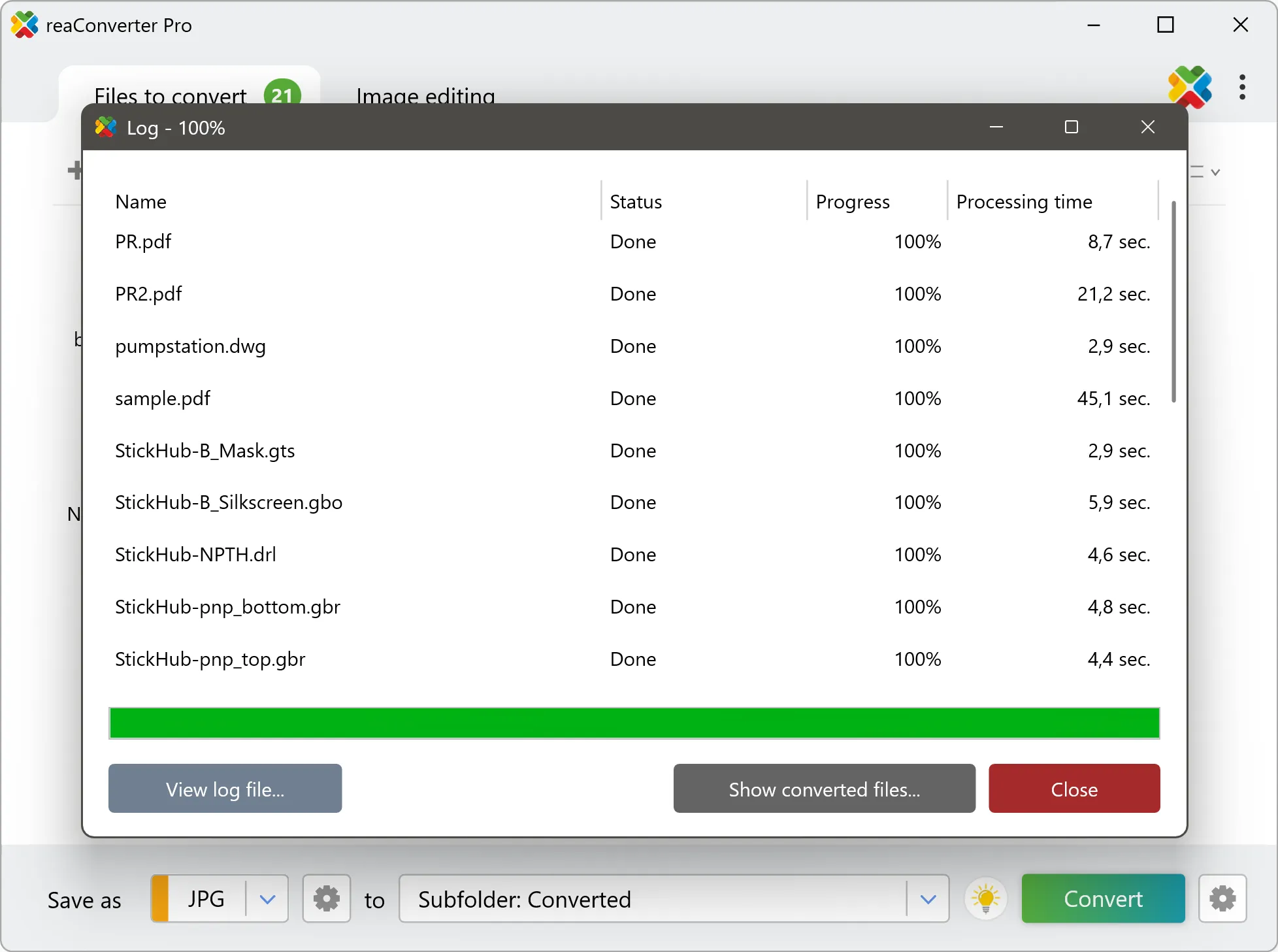
Once done, reaConverter shows a summary. Click 'Show converted files' to jump straight to your CGM output.