

How to Convert Multiple CRW Images to AVIF?
1. Download and Install reaConverter
First, grab reaConverter from the download button below. Installation is fast, and the software runs offline — no account or signup needed. Built-in editing tools let you resize, crop, or watermark as you convert.

2. Load your CRW files
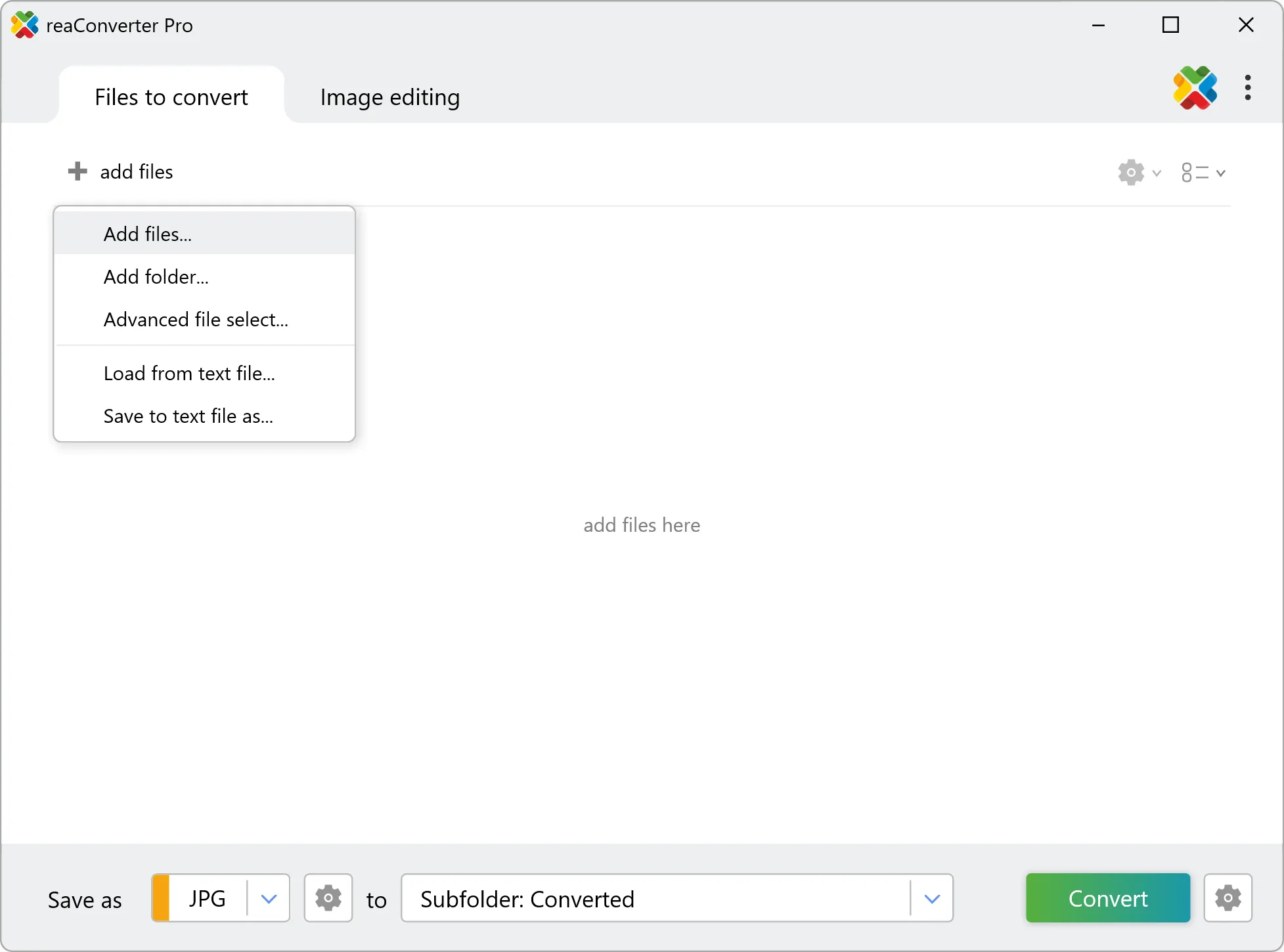
Load your CRW RAW photos into reaConverter. Add entire shoots at once and process them in minutes.
Browse for files, drag them in, or add entire folders at once. reaConverter queues everything automatically.
3. Select AVIF as output format
Choose AVIF as output format. Adjust color profile, quality, and resolution settings to match your photography workflow.

4. Start CRW to AVIF conversion
Start the conversion with one click. reaConverter handles everything and notifies you when it's done.
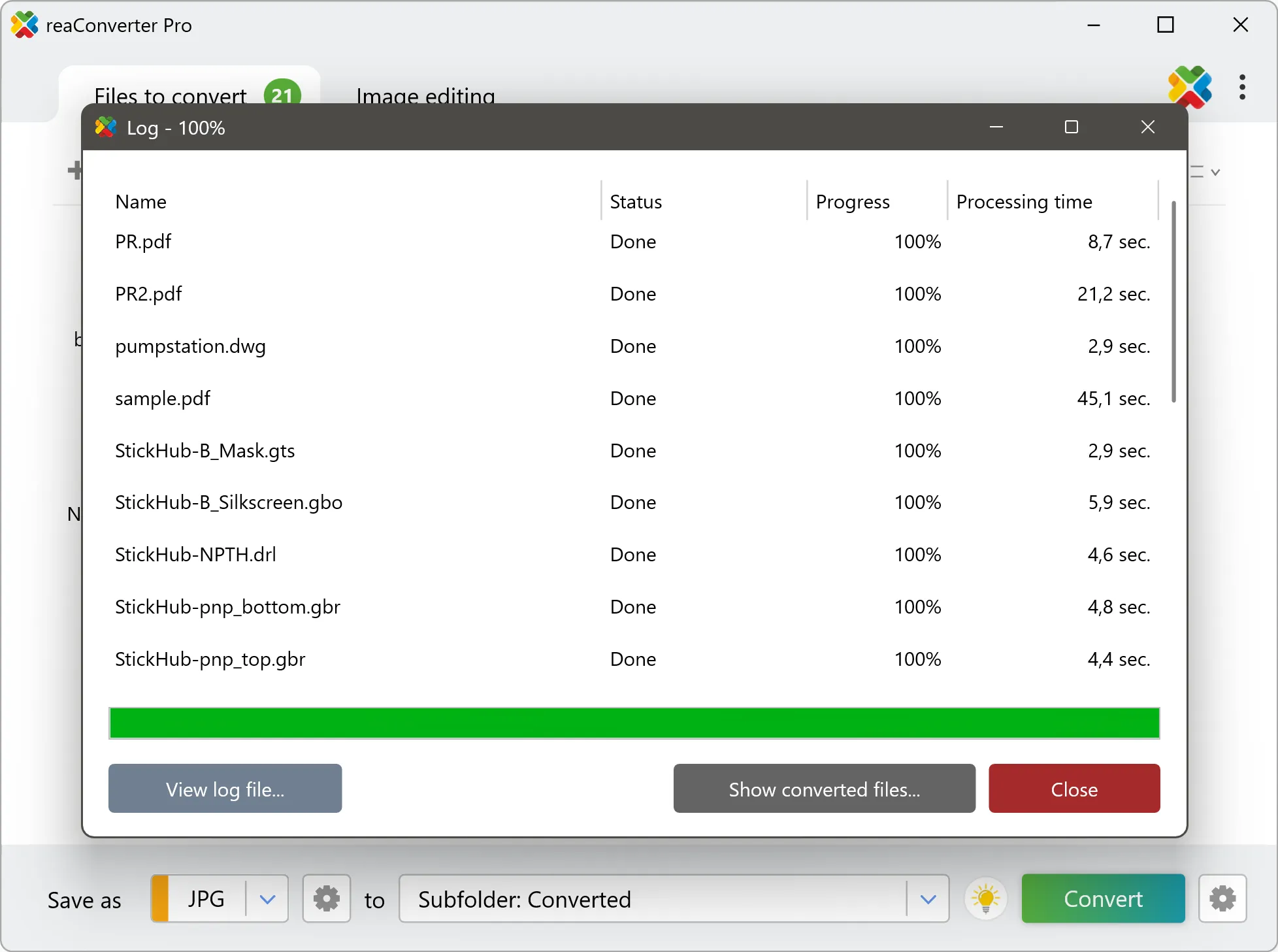
When the batch finishes, your AVIF files are ready in the destination folder you chose earlier.