

How to Convert Multiple BAY Images to TGA?
1. Download and Install reaConverter
Download reaConverter and install it in seconds. The setup is straightforward — no complex configuration, no extra software required. Need edits? Resize, rotate, or add watermarks during conversion.

2. Load your BAY files
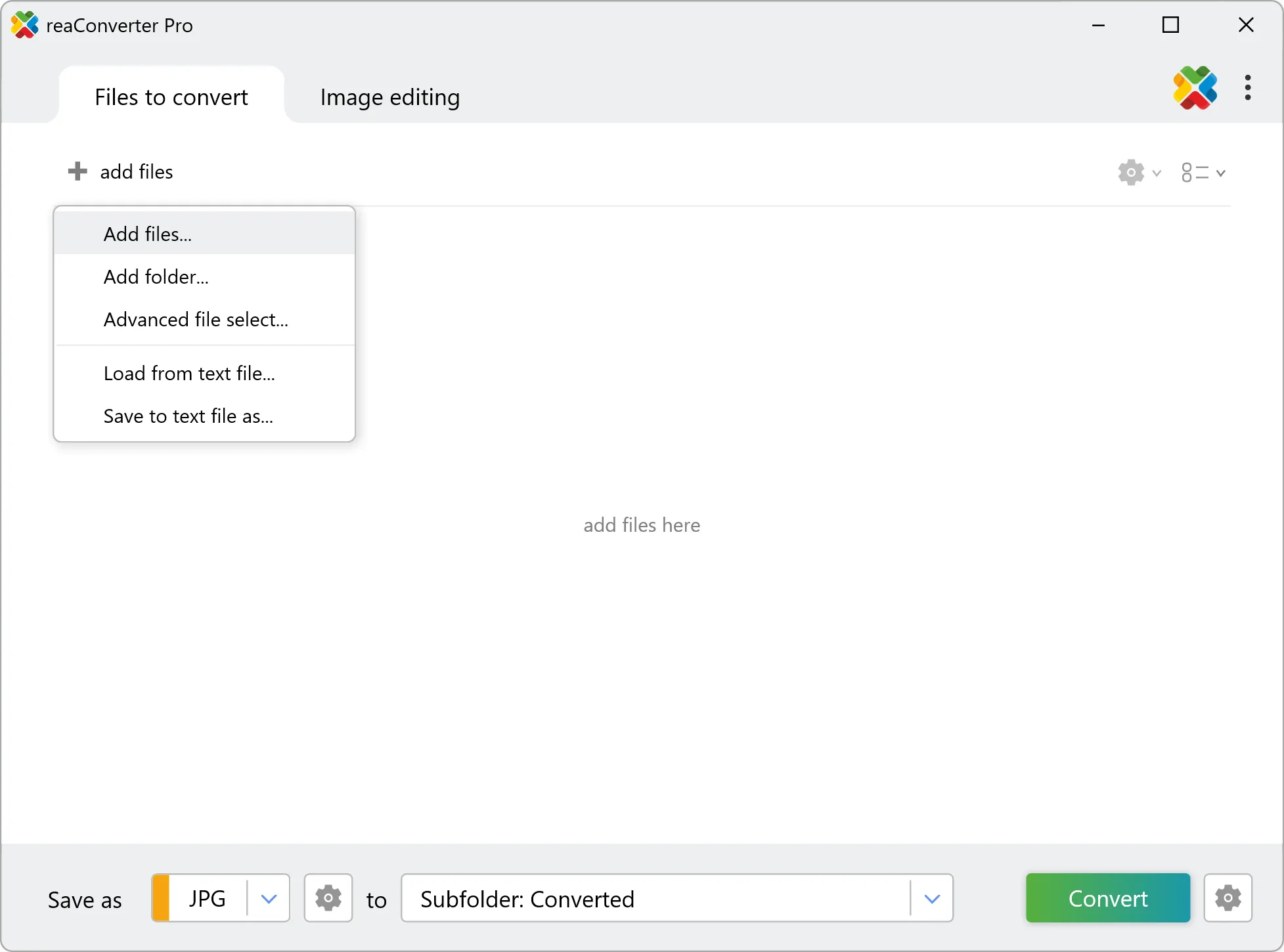
Open reaConverter and import your .bay files. No file limits, no slowdowns. Add as many as you need.
You can drag-and-drop files, browse to a folder, or add entire directory trees including subfolders.
3. Select TGA as output format
Pick TGA as the output format. Set the destination folder and optionally configure resolution, quality, or file naming.

4. Start BAY to TGA conversion
Click the Convert button to start. reaConverter will process all your files with the settings you selected.
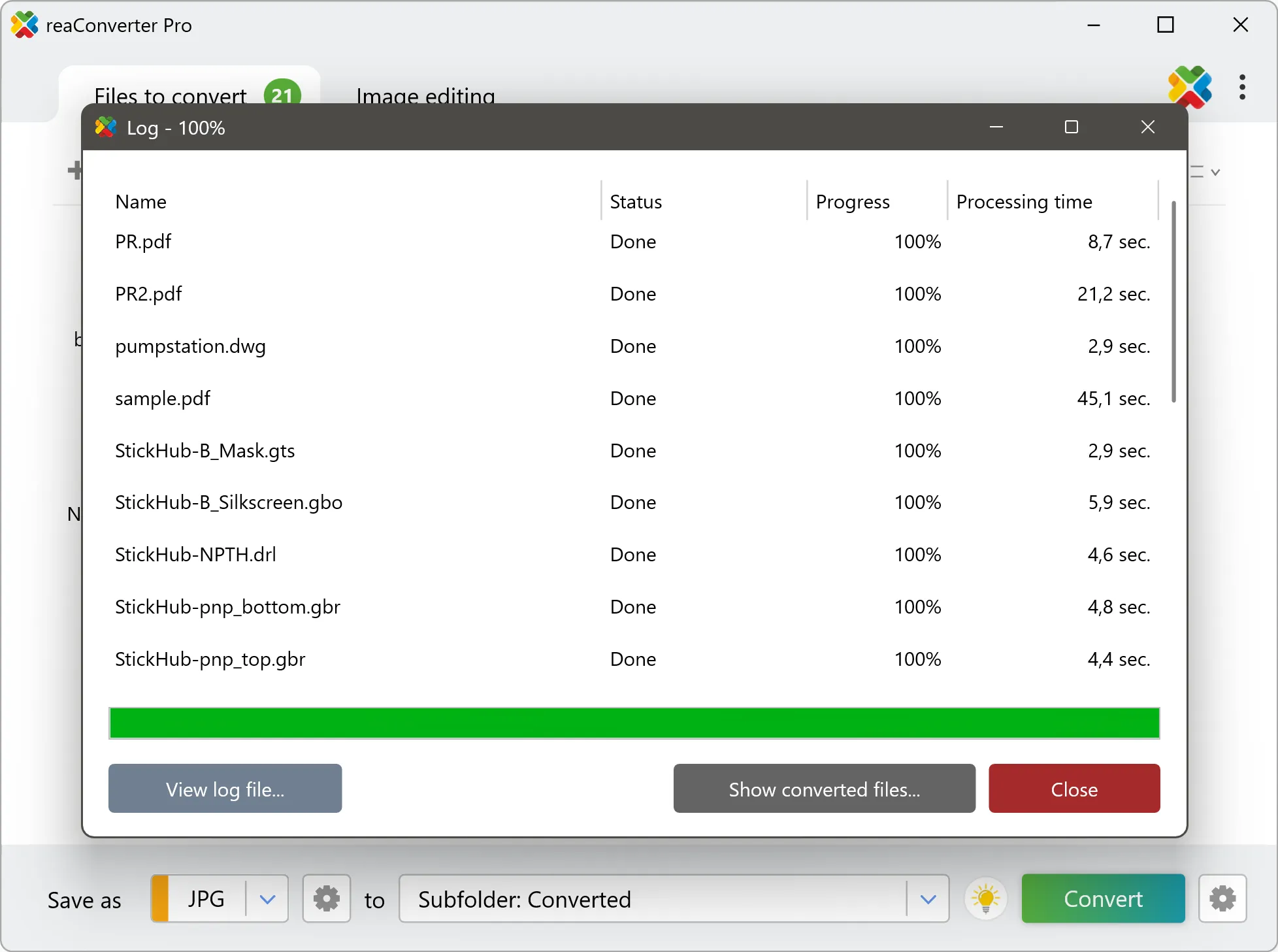
When finished, your new .tga files will be waiting in the destination folder.