

How to Convert Multiple BAY Images to APNG?
1. Download and Install reaConverter
reaConverter is a standalone Windows app — download, install, and start converting BAY files in under two minutes. Built-in editing tools let you resize, crop, or watermark as you convert.

2. Load your BAY files
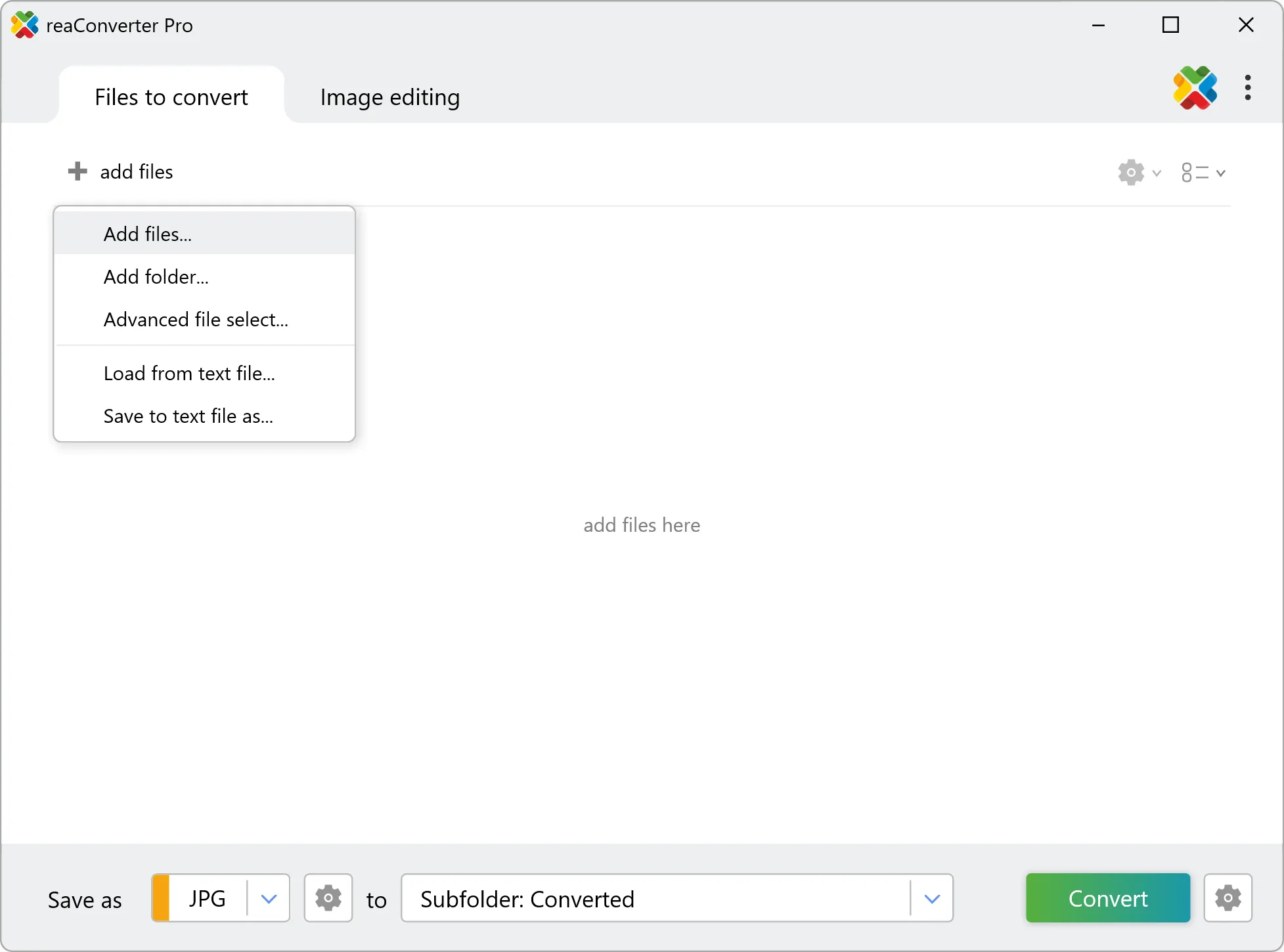
Open reaConverter and import your .bay files. No file limits, no slowdowns. Add as many as you need.
Drag-and-drop BAYs directly into reaConverter or use the folder browser to load entire directories.
3. Select APNG as output format
Pick APNG as the output format. Set the destination folder and optionally configure resolution, quality, or file naming.

4. Start BAY to APNG conversion
Press Convert to begin processing. You can watch the progress or minimize and let it run in the background.
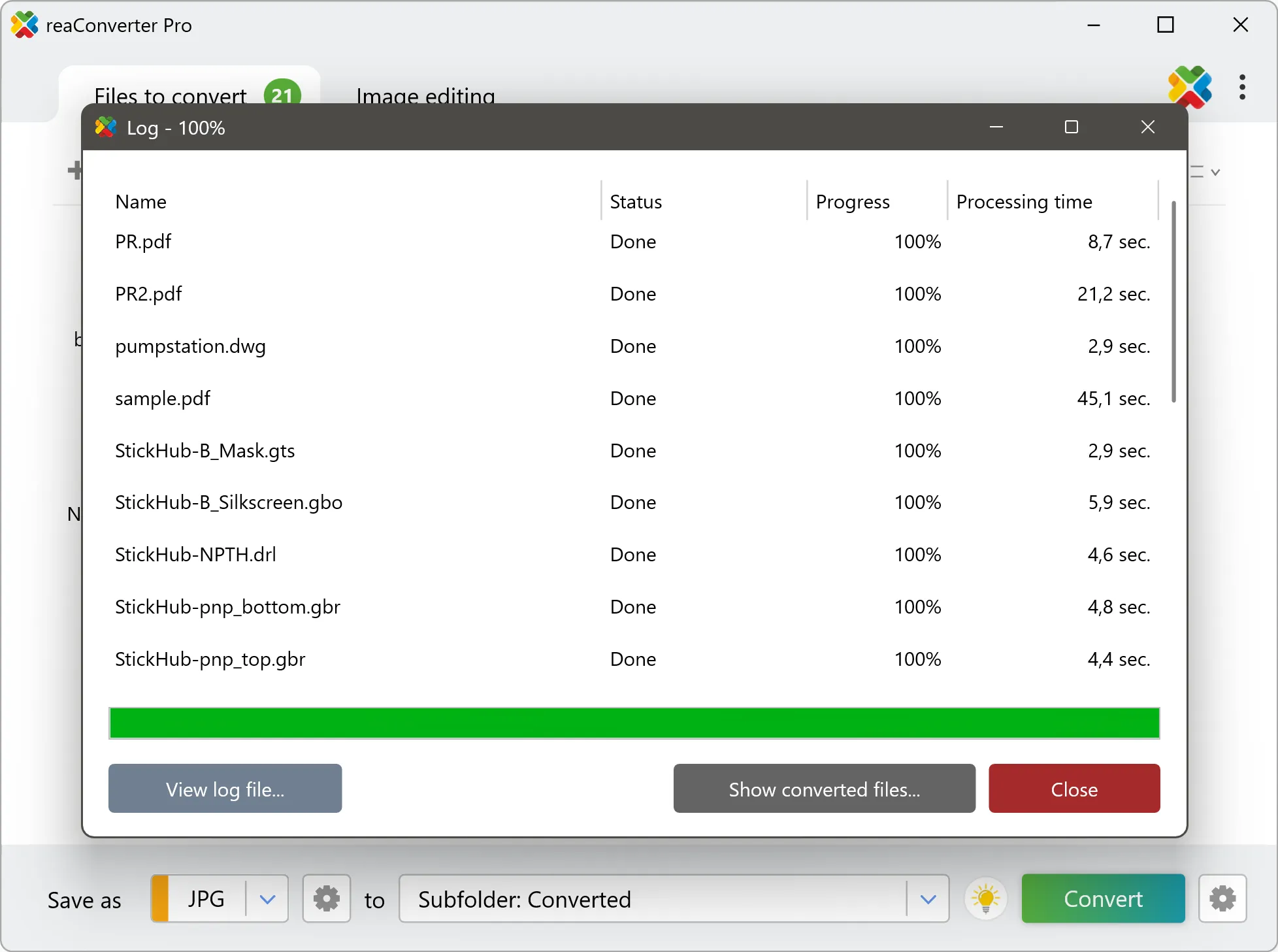
Your converted APNG files will appear in the destination folder as soon as processing completes.