
How to Convert Multiple AVIF Images to AI?
1. Download and Install reaConverter
First, grab reaConverter from the download button below. Installation is fast, and the software runs offline — no account or signup needed. Need edits? Resize, rotate, or add watermarks during conversion.

2. Load your AVIF files
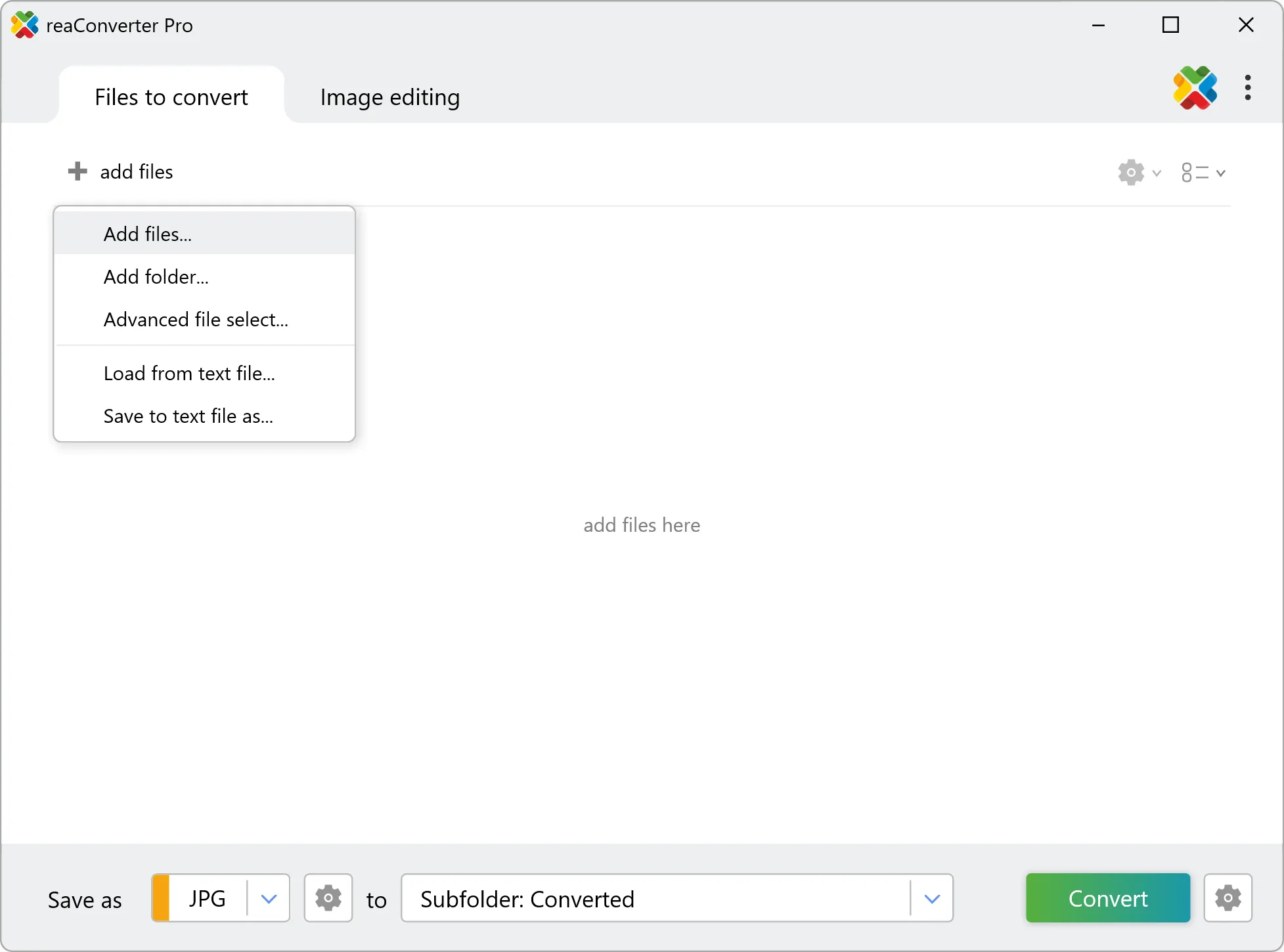
Add AVIF files to reaConverter. One file or a thousand, the process is the same. Everything runs locally on your machine.
You can drag-and-drop files, browse to a folder, or add entire directory trees including subfolders.
3. Select AI as output format
Select AI from the output format list and set your destination folder. You can also adjust quality and compression settings.

4. Start AVIF to AI conversion
Click the Convert button to start. reaConverter will process all your files with the settings you selected.
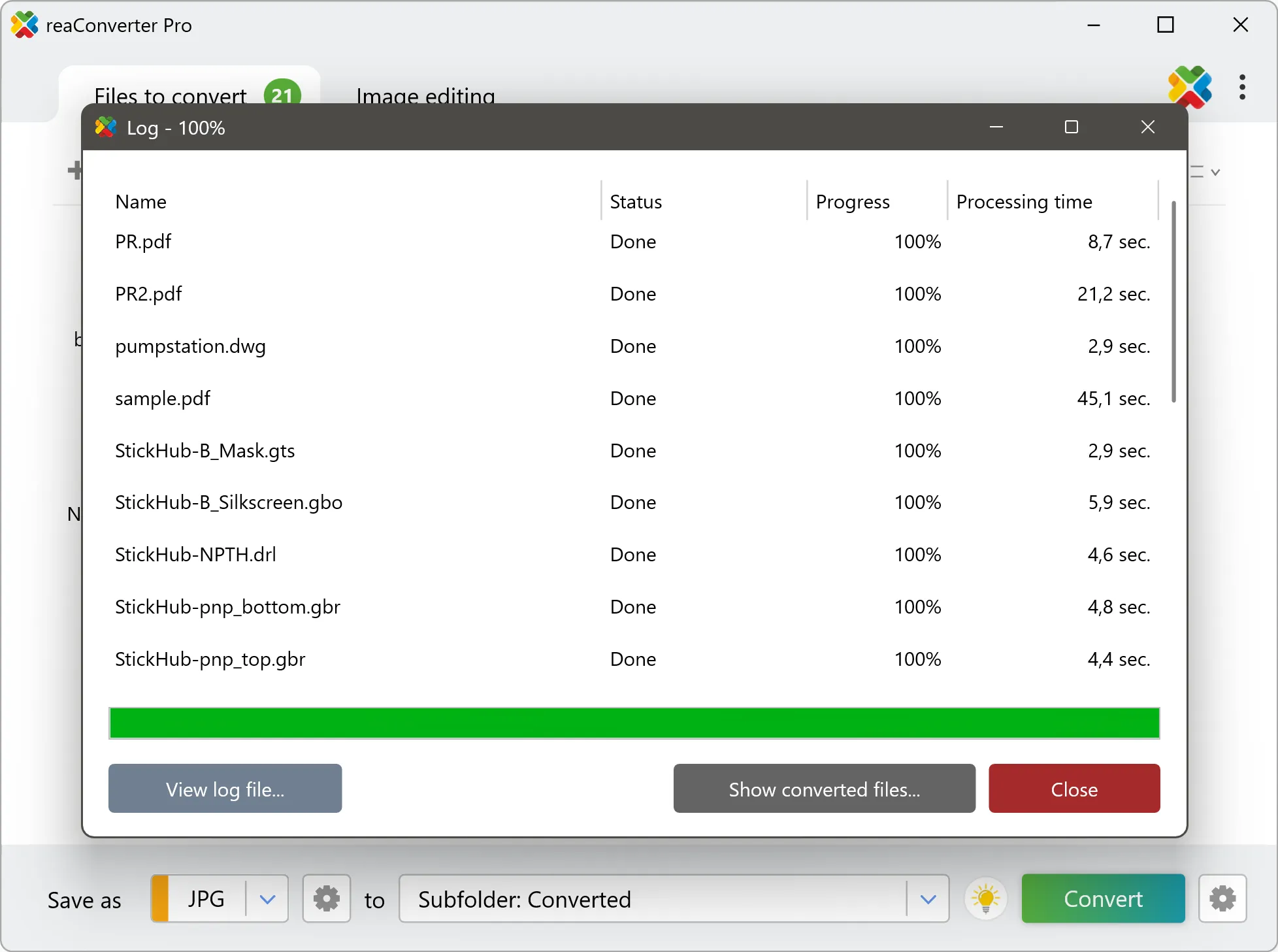
When finished, your new .ai files will be waiting in the destination folder.