
How to Convert Multiple AC3D Files to BMP?
1. Download and Install reaConverter
First, grab reaConverter from the download button below. Installation is fast, and the software runs offline — no account or signup needed.

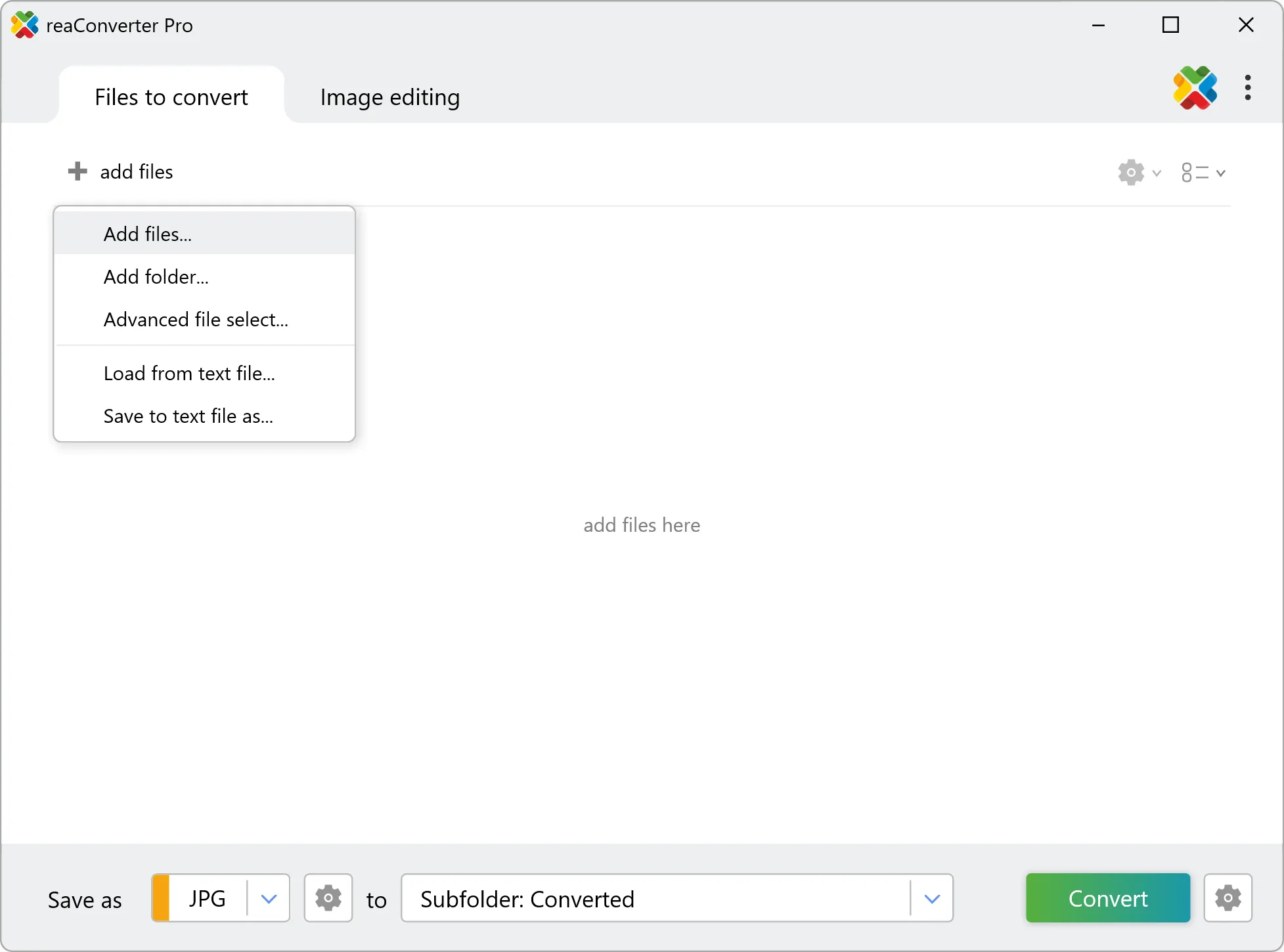
2. Load your AC3D files
Launch reaConverter and load the AC3D files you want to convert. Add a few files or thousands, batch processing handles them all.
Drag-and-drop AC3Ds directly into reaConverter or use the folder browser to load entire directories.
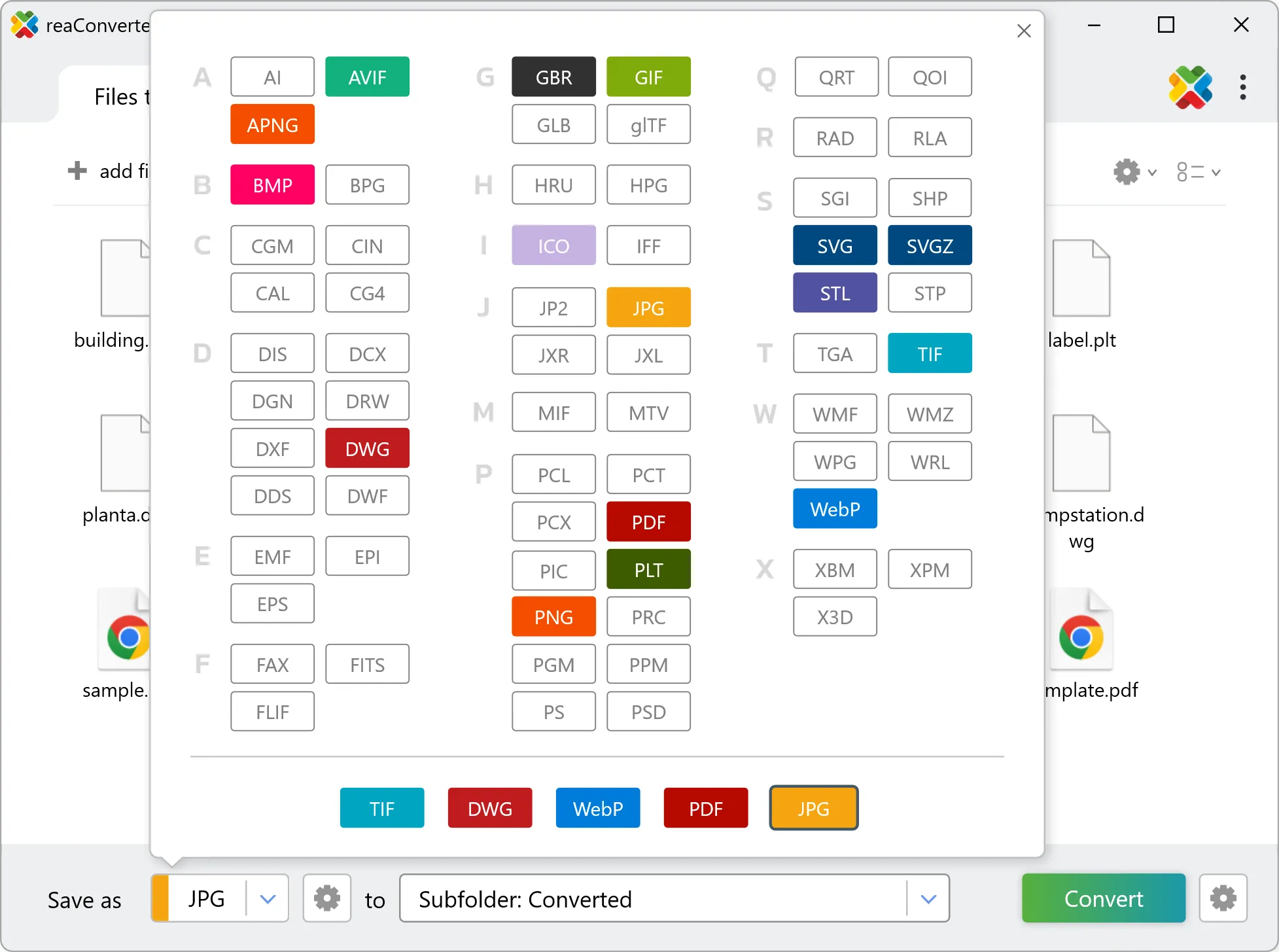
3. Select BMP as output format
Set BMP as output format and select where to save your converted files. Customize quality settings if needed.
4. Start AC3D to BMP conversion
Press Convert to begin processing. You can watch the progress or minimize and let it run in the background.
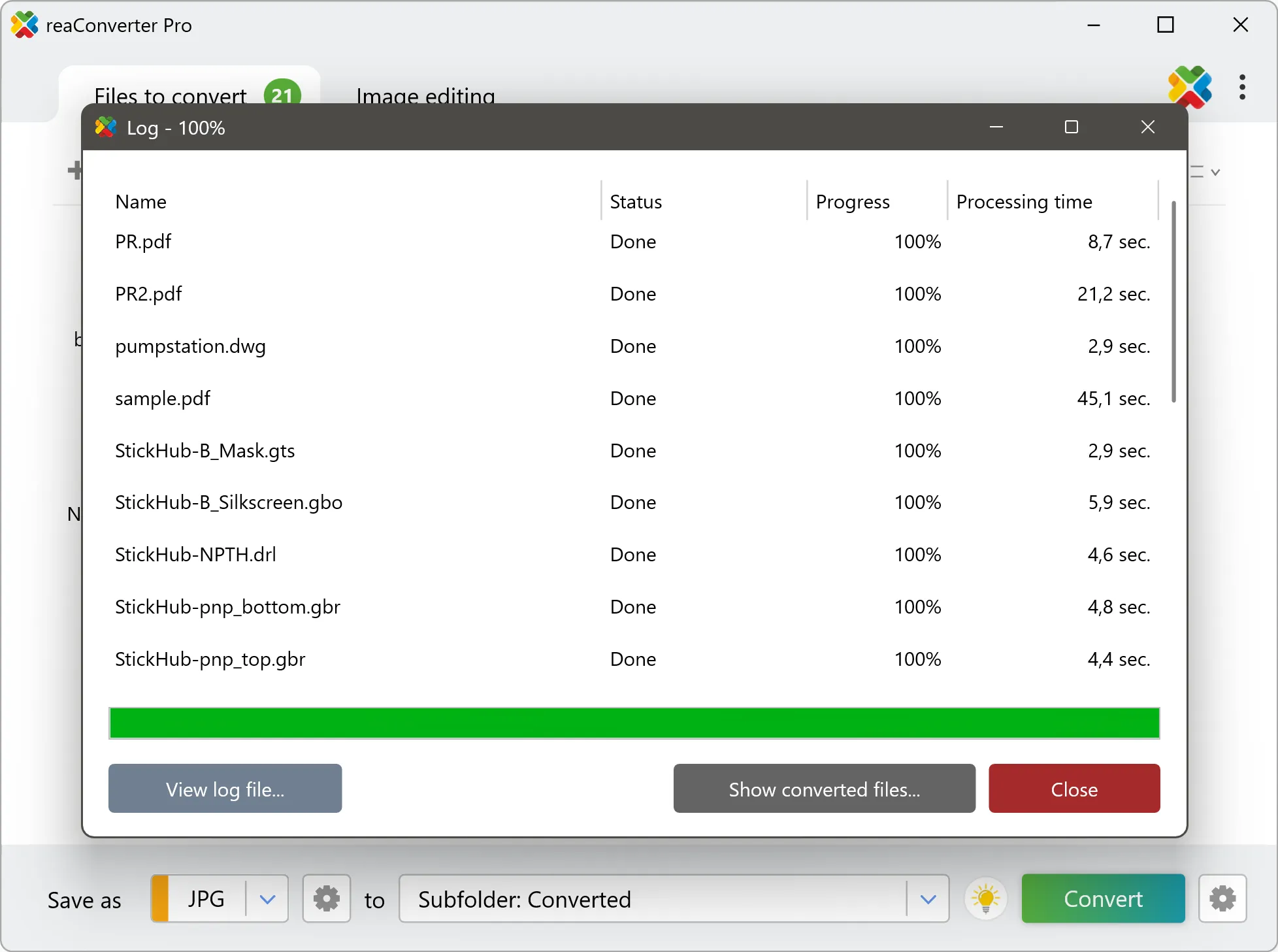
Your converted BMP files will appear in the destination folder as soon as processing completes.