
How to Convert Multiple $S Files to DRW?
1. Download and Install reaConverter
reaConverter installs quickly on any Windows PC. No dependencies, no bloatware — just a clean setup that's ready to use immediately.

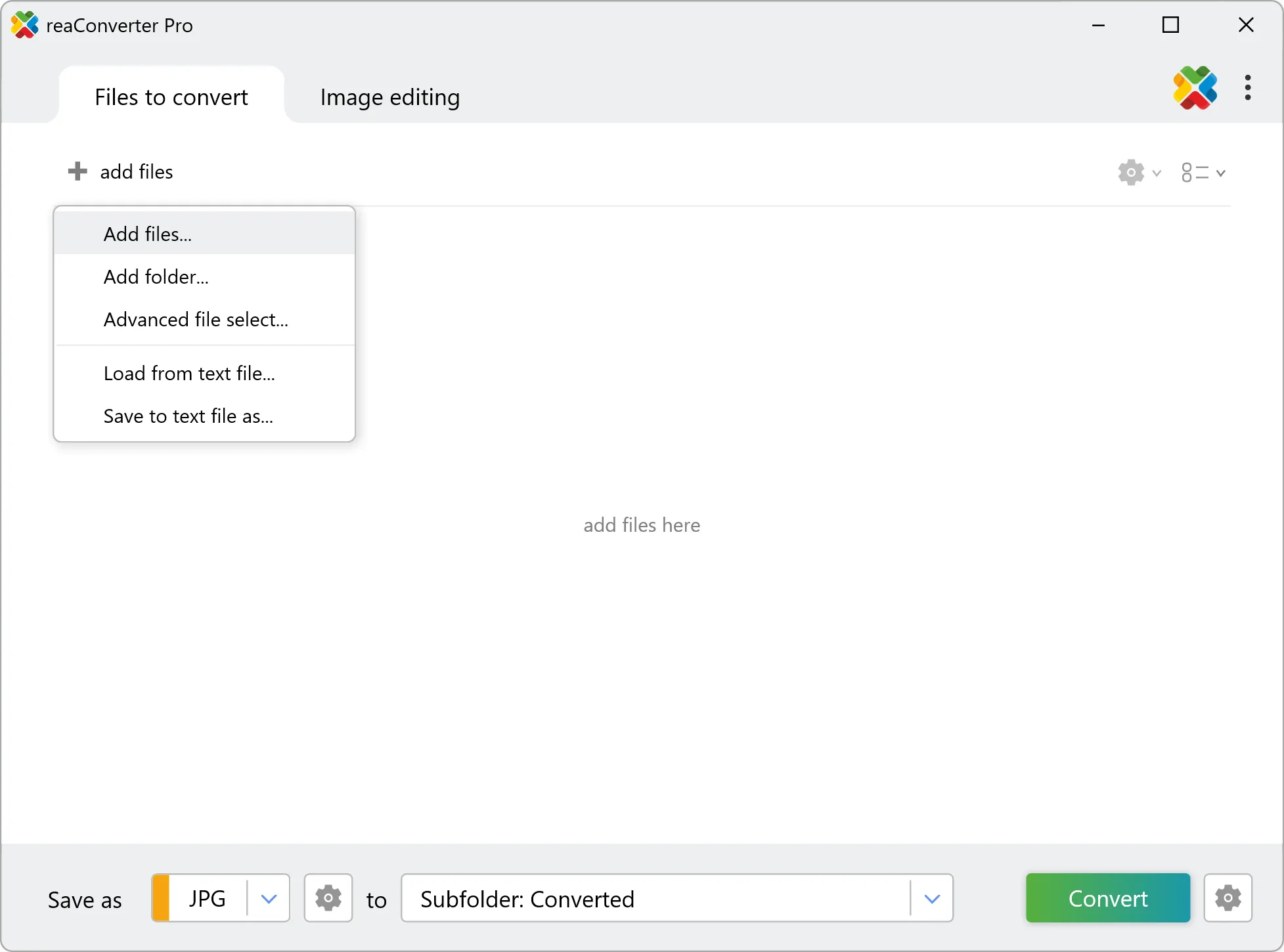
2. Load your $S files
Start reaConverter and add your .$s files. The software processes everything locally, so your files never leave your computer.
Use drag-and-drop, folder browser, or right-click conversion from Explorer.
3. Select DRW as output format
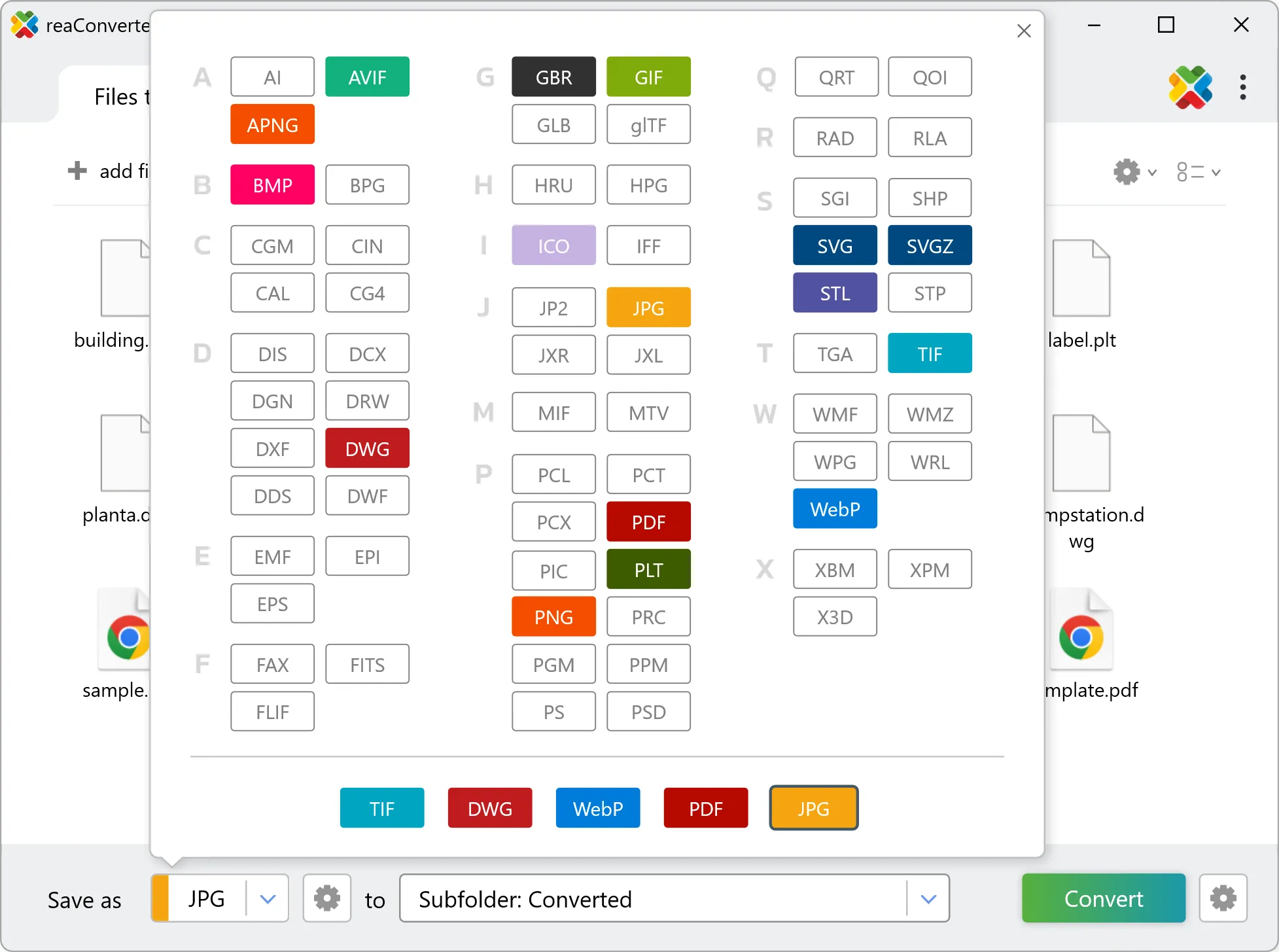
Select DRW from 700+ supported output formats. Choose your destination folder and adjust settings to match your needs.
4. Start $S to DRW conversion
Click Convert to start the batch. reaConverter processes files quickly and shows you the status of each one.
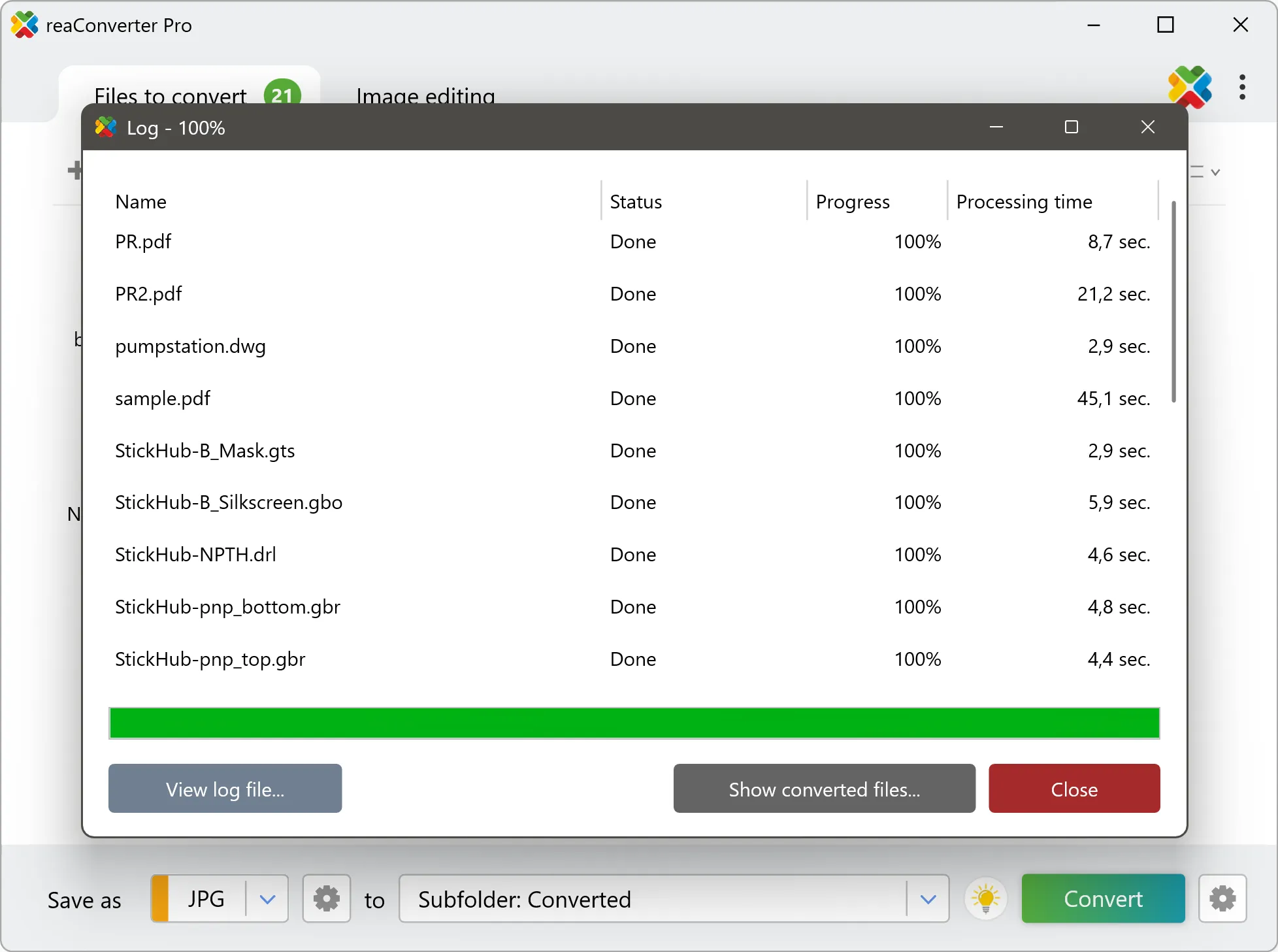
Once done, reaConverter shows a summary. Click 'Show converted files' to jump straight to your DRW output.