
Convert $S to DDS

Convert $S to DDS without quality loss. reaConverter gives you full control over resolution, compression, and output settings.

Manual $S to DDS conversion wastes hours. reaConverter automates the process — just add files and click Convert. Everything happens offline on your computer — no uploads, no cloud risks.

Convert

How to Convert Multiple $S Files to DDS?

1. Download and Install reaConverter

reaConverter installs quickly on any Windows PC. No dependencies, no bloatware — just a clean setup that's ready to use immediately.

2. Load your $S files

Open reaConverter and add your $S files. You can load individual files, entire folders, or even nested subfolders.

Drop your $S files into the window or use File menu to browse and select folders.
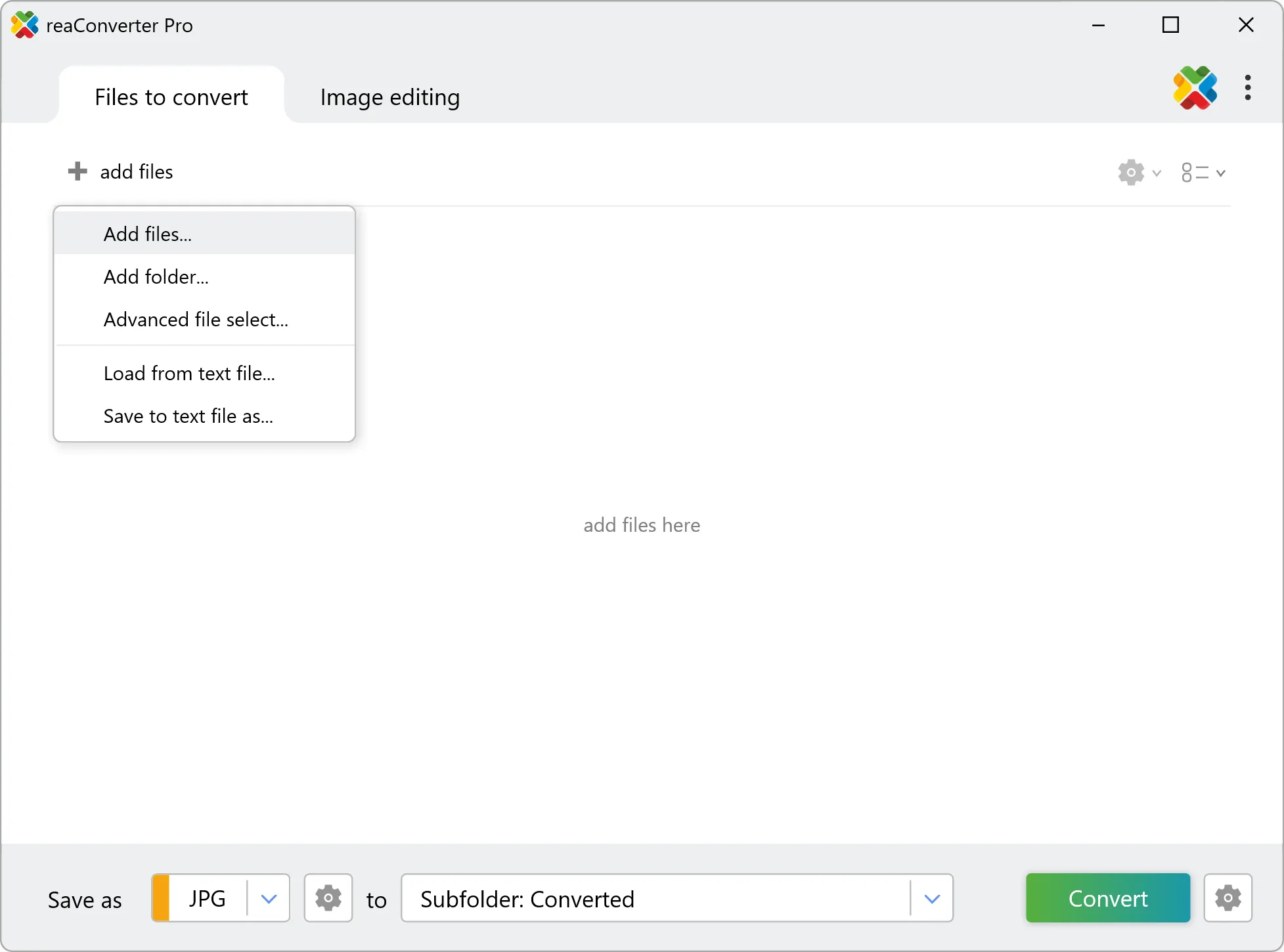
Load your $S files into reaConverter

3. Select DDS as output format

Choose DDS as the target format. Pick a destination folder or let reaConverter save files alongside the originals.
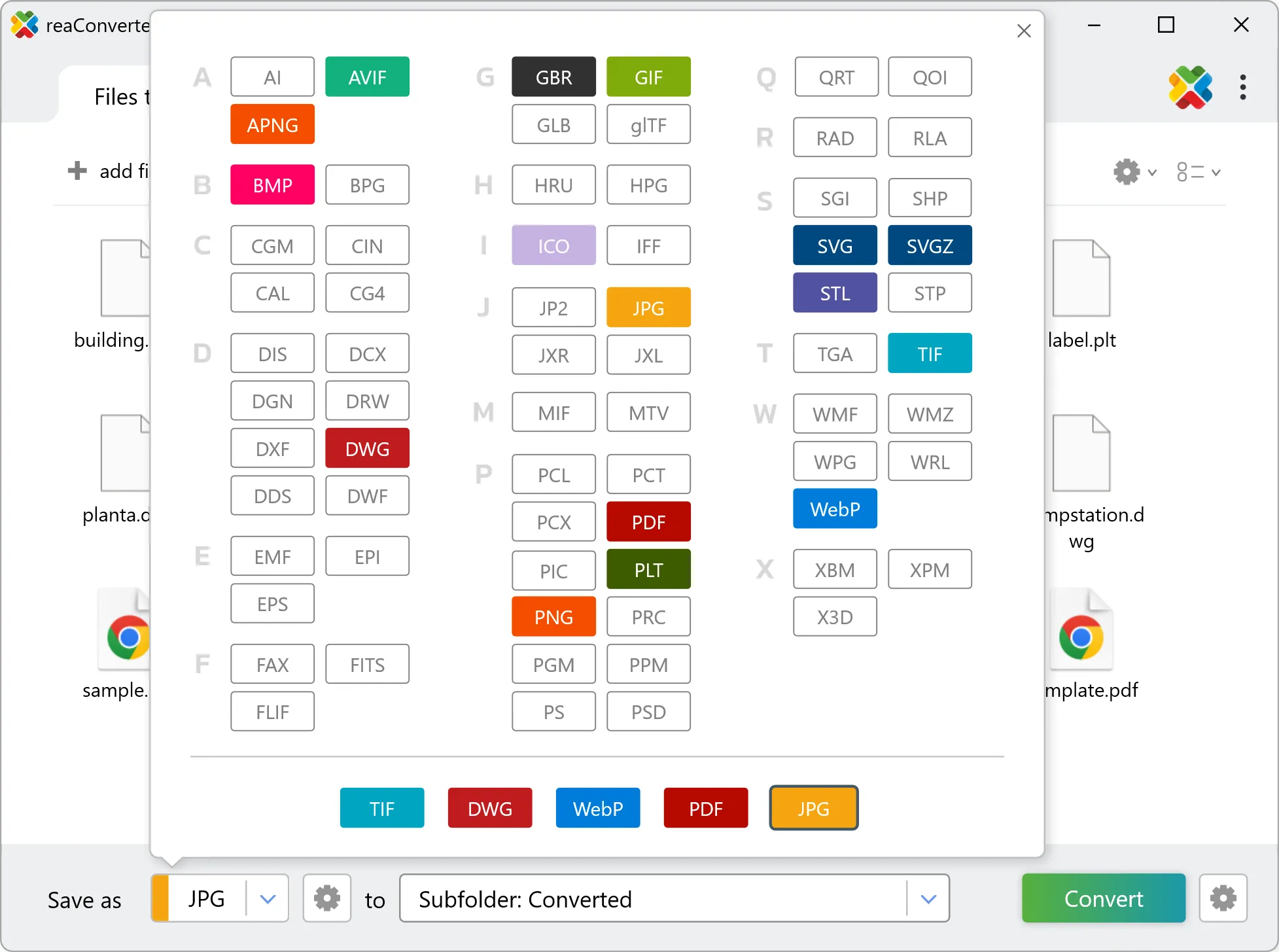
Select DDS as output format

4. Start $S to DDS conversion

Hit Convert and let reaConverter do the work. The progress window shows status for each file in real time.
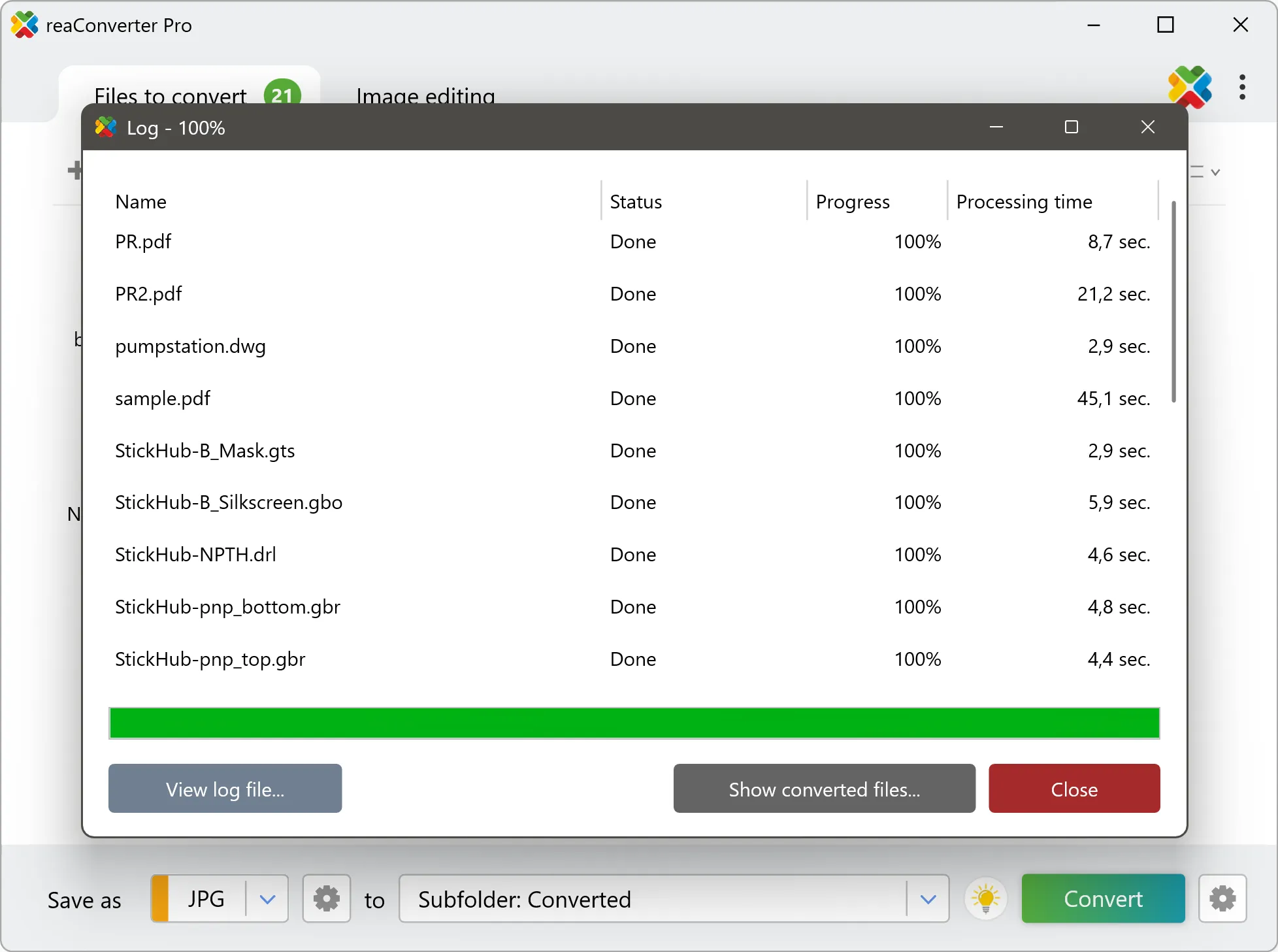
Start Conversion

After conversion, find your DDS files in the output folder. Click 'Show converted files' to open it directly.


$S to DDS Converter

reaConverter offers the fastest, simplest solution for converting your $S files into DDS in seconds - all files processed on your PC for maximum privacy and speed.

Do more with your files

Converting $S files for use in a workflow? reaConverter offers many ways to process files, so you can customize them according to your requirements.

Our range of editing options includes auto-processing options such as auto-rotate, auto-crop, watermarking and more. Change Color Space, copy Metadata, set DPI, manage ICC Profile, control Bit Depth.

Image editing

User Reviews

Average User Rating:
Last updated on January 25, 2026
"5/5⭐ Finally! Does what it promises - converts AND tweaks images without complicated menus. Perfect for quick jobs."
J. Mitchell
J. Mitchell
Satisfied Customer
"reaConverter is pure gold! Rock-solid performance with zero crashes. No internet needed—perfect for travel or low-connectivity work. The ultimate offline alternative to sketchy web converters. Plus, the desktop version keeps sensitive files secure since nothing ever gets uploaded to the cloud."
Malik T. Martin
Malik T. Martin
Satisfied Customer
"I was skeptical at first, but reaConverter exceeded my expectations. The interface is intuitive, and the advanced settings let me tweak outputs perfectly. Plus, the customer support is fantastic!"
Sarah Lane
Sarah Lane
Satisfied Customer
"This software just works! My old laptop can’t handle Photoshop, but reaConverter flies through conversions without breaking a sweat. Wi-Fi gone? Still strong!"
Robert Williams
Robert Williams
Happy User
"Rare software that actually does it all! Converts anything, beautiful interface, and never lets me down. A must-have!"
Henry R.
Henry R.
Happy User
"For cross-platform compatibility, JPEG remains the gold standard. reaConverter’s precision conversions ensure perfect results every time, whether for presentations, websites, or client deliverables."
Paul Baker
Paul Baker
Happy User

$S to DDS Conversion: FAQ

Can reaConverter convert $S to DDS?

Yes! reaConverter instantly converts .$s to .dds with perfect quality preservation. With its batch processing feature, you can convert multiple files at once in just a few clicks. You can even convert images directly from Windows Explorer using the right-click menu — fast and convenient.

Can I convert $S to DDS online?

If you only need to convert a few $S files to DDS format, feel free to try our free online free online $S to DDS converter — perfect for small batches with no installation needed!

How can I turn $S files into DDS on my computer?

The best way to change $Ss to DDSs on your PC is to install a quality piece of software, such as reaConverter. This software is extremely efficient in managing a wide range of batch files conversions, including conversion from $S to DDS.

How can I automate $S to DDS files conversion?

reaConverter supports all the most useful automation features such as right-click сonversion and Watch Folders for the most efficient automated files conversion in any software of this type.

Is there a way to convert $S files to DDS using the command prompt?

reaConverter provides full access to all its features via Windows command line, including a high-performance command-line $s to dds converter for batch processing.

What else can I do with reaConverter?

Copy metadata (EXIF, IPTC)Change format settingsChange DPISet manual file dateConvert Gerber files

Find out more

Get advanced software for file conversion, processing, and editing, giving you complete, precise control over your work.
reaConverter software
